Change account settings
Tip What you see in your account may not match exactly what is shown in the following images. Links and settings options vary by account type. Editor account holders see fewer options than Publisher account holders.
You choose your account settings when you first sign up for your account.
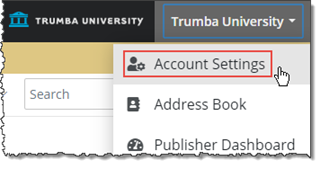
To change your account settings, click your account name in the upper-right corner of the Trumba editing environment (such as here for the fictional Trumba University account), and then click Account Settings:
In Account Settings:
- All account holders have access to basic settings, such as the account display name, email address, and password, plus other calendar- and email-related options.
- Publisher account holders with primary or administrator account status also have access to billing, credit card, and other account-level settings.
For explanations of specific account settings, see the list that follows the image.
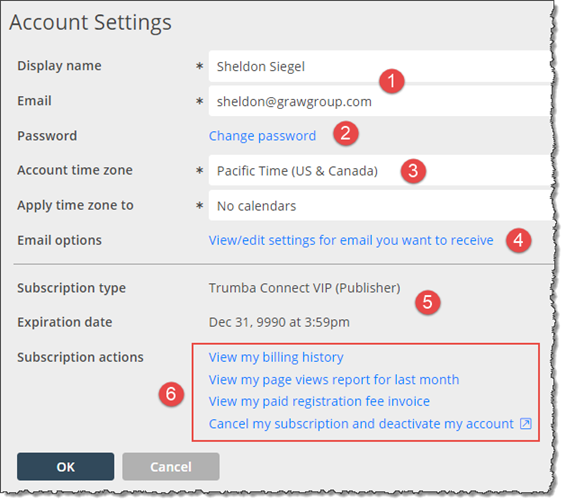
- Your Display name is the name that displays at the top of each calendar page. It's also the name that appears in shared calendar lists, calendar and event email lists, Address Books, and other account listings. If you change your display name, the new name replaces the old one in all of these locations.
In addition to being part of your sign on credentials, your account Email address is the address at which you receive calendar updates, event invitations, and other account-related messages.
- If you change your account email address, your new address automatically replaces the old one in other Trumba account holders' shared calendar lists, email lists, and Address Books.
- If the new email address is already in use for actions, such as subscribing to a calendar or receiving some type of event notification, contact Support for assistance in freeing access to that address.
- To change your password, click Change password, and then type and confirm your new password.
- The Account time zone determines the default time zone for each calendar you create. You can change a calendar's default setting at any time.
The Apply time zone to setting applies the current (or updated) account time zone to calendars with the same time zone, or to all of your calendars.
Note Changing a calendar's time zone changes the times of all the calendar's events. Learn more about time zones.
- Email options: Click View/edit settings for email you want to receive to opt out of receiving certain types of email messages generated by Trumba Connect.
- Subscription type and Expiration date: For most account types, this section is informational only.
- The links outlined in red appear only in Publisher accounts that have primary and/or administrator account status. Learn more.
Publisher account holders can click the links to go directly to account billing and calendar page view data, for example.
Note For more details about how we use the information you provide, click Privacy Policy at the bottom of any calendar page.

