
If you want to promote a specific event or encourage a targeted audience to register for an event you're sponsoring, you can provide a link that bypasses the main calendar and opens the event's Event Actions page directly.
You can also provide visitors with a direct link to the page where they subscribe to your calendar email or to its RSS, iCal, Atom, CSV, or JSON feed.
Note Event registration links are created at the time you save an event with event registration. To find an event registration link, you have to open an event that you already created and saved.
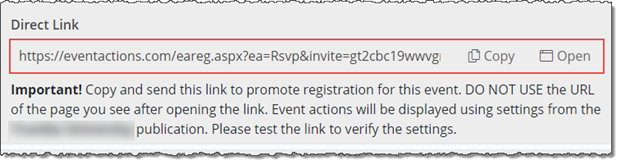
Testing the link is important The URL is based on the current publication selected in the editing environment. That publication's settings determine the fields and appearance of the registration page. If the page doesn't look how you expect, close the add/edit event form and switch the current publication.
Important DO NOT USE the URL of the page you see after opening the link. It will not work in a fresh browser window. Instead, use the Direct Link, as shown in the example above, to open the registration page for the event.
For example, your link might look like this:
https://eventactions.com/eareg.aspx?ea=Rsvp&invite=gt2cbc19wwvgng7zukyym3fmaz2ggy306bgbns7a409c0w76w4ug
The examples that follow refer to a calendar's web name. If you're not sure what a web name is, see What is a calendar's web name?.
To provide a calendar email or RSS, iCal, Atom, or CSV feed subscription link, use this URL:
http://eventactions.com/eventactions/webname#/subscribe
Your link might look something like this (where webname is your calendar's web name):
<a href="http://eventactions.com/eventactions/webname#/subscribe">Subscribe to our weekly calendar email updates!</a>
Note In the subscribe URL, the web name is followed by a pound sign (#).
I'd like more information about direct links to Event Actions pages.
