Help with search results
What do you need help with?
- I can't find the event I'm looking for
- Too many events match my search
- I need help with event type and other filters
- How do I clear my search results?
- I'm having trouble with location search
I can't find the event I'm looking for
If you didn't find the event you searched for, you may have seen a search results bar similar to this one:
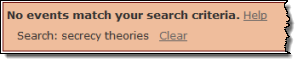
The search results bar when no events match your search.
It's possible that no events match what you're looking for. But, before you give up, you might want to:
- Confirm the spelling of the term you're searching for.
- Use the right search terms
- Broaden the search
Use the right search terms
Follow these guidelines for using search terms that deliver the best results.
What works |
What doesn't work |
|---|---|
|
|
| Typing this term | Results in |
|---|---|
| aikido | Events that contain the word "aikido." |
| sword form | Events that contain both the words "sword" and "form." The words don't have to be together or in the same field. |
| sword and form | Events that contain the word "sword." Everything after "and" is ignored. |
| sword or form | Events that contain the word "sword." Everything after "or" is ignored. |
| 3 | No events. You can't search for single characters. |
| Studio 1 | Events that contain the word "studio." You can't search for single characters. |
| sword* | Events that contain the words "sword," "swords," "swordsmanship," etc. |
Broaden the search
You can broaden a search in several different ways.
- If you searched for two terms, pick the more unique term and search only for that one.
For example, rather than searching for secrecy theories, search only for the more unique of the two words, secrecy.
To improve the relevance of the search results, search only for secrecy.
- If you searched for a term that could have multiple endings, add an asterisk (*) to the term.
For example, while Musician class turned up no results, Musician* class (which also allows for Musicians and Musicianship) might.
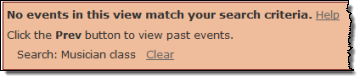
To broaden this search, add an asterisk (*) to one or both terms.
- If you applied more than one search criterion, simplify the search.
For example, the following search panel shows a search for the term Lithographs in events of the Lecture category.
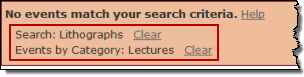
To broaden this search, click Clear to the right of the event category filter.
- If you see a search panel like the one below that emphasizes the view, you may need to choose a different calendar view that lists more events.
For example, if you're looking at a Week view, the search is restricted only to events that occur during that week.

To show search results for a longer time period, click Show List of Events.
Too many events match my search
If your keyword search returns too many events, try making the search more restrictive.
- Change the calendar view If the calendar you're searching offers a choice of views, you can restrict a search by choosing a more limited view. For example, if you know an event will take place during the coming month, you might choose a Month view.
View choosers come in two styles. The view chooser you see will look similar to one of the two following examples.
- Selecting a List view in a tabbed view chooser:
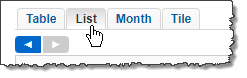
- Selecting a Month view in a drop-down menu view chooser:
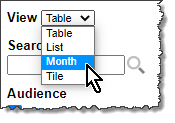
- Selecting a List view in a tabbed view chooser:
- Add a second keyword (do not separate keywords with and, or, or not).
For example, if you originally searched for the keyword lectures and got too many hits, you might restrict the search by adding the second keyword political.
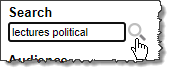
- Add a filter to the search If the website you're searching provides filters, select values in the filters to restrict your search.
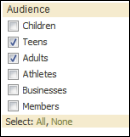
For example, if you originally searched for the keyword lectures and got too many hits, you might restrict the search using an Audience filter.
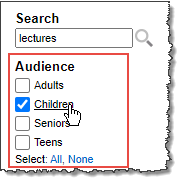
Narrow a keyword search by applying a filter. In this example, the Audience filter is applied.
I need help with event type and other filters
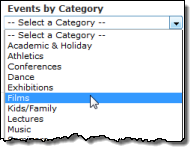
Filters show you how an organization's events are classified. For example, an organization might classify events by type or category, intended audience, or departmental sponsor.
By choosing values in filters, you can use the organization's classification system to display only the events you care about.
Filter examples
|
|
|
|
Tips for using multiple-values filters
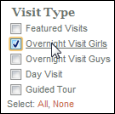
- Click a value name to quickly select just that value while clearing all other selections.
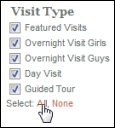
- At the bottom of the filter, click All or None to quickly select or clear all values.
How do I clear my search results?
If you see a search results bar above the calendar:
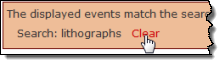
- Click Clear to the right of the search terms.
If you don't see a search results bar above the calendar:
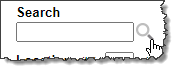
- In the search tool, delete the search terms:
I'm having trouble with location search
If you were searching for events near your location, you probably used a search tool that looks similar to one of these examples:
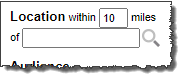

Try the following suggestions to resolve your location search problems.
I didn't find any events near my location
- Try searching a wider radius.
For example, if the specified distance is 10 miles, try replacing it with 50 miles.
- Redo your search using one of these acceptable locations:
- Street address (for example, 11 West 53rd St., New York)
- Place or landmark (for example, Lincoln Memorial, Central Park)
- Neighborhood (for example, Capitol Hill, Seattle)
Tip The more specific the location, the more successful the search will be. For example, if you know the zip code, include it in the address.
Instead of getting search results, I was asked to select a location.
Click the arrow to drop down a location list, and then if it's listed, select your location.
If it's not listed, try the tips under I didn't find any events near my location.
The location box says Current Location. I don't know what that means.
If you see Current Location in the location box, and you have location services/sharing enabled on your computer or mobile device, click the search icon or hit Enter.
The search tool automatically provides your current address (or something close) and returns a list of events within the specified radius.