
This topic assumes that you have already established your PayPal Express Checkout account and you have worked with Trumba to enable paid registration on your account. For more information, see Introduction to paid registration.
We strongly recommend that, after you have the Trumba-PayPal Express Checkout connection set up, you thoroughly test the entire paid registration process to ensure that credit card payment works, money actually gets added to your PayPal account, and you can successfully process a refund.
Doing a thorough test run will uncover any problems related to your Trumba event registration and payment gateway setup and to PayPal account settings that have nothing to do with Trumba.
The best approach is to create and publish a separate test calendar that uses the same settings as your live calendar. Then, you can set up paid registration on an event that you add to that test calendar. Once you confirm, by running through the entire registration, payment, and refund process, that things are working correctly, you can move the event from the test to the live calendar.
Trumba maintains its own PayPal account, which serves as the conduit between your Trumba events and your PayPal account. To enable payment processing for Trumba events, you need to go through two sets of steps:
Tip While you're in your PayPal account, it's a good idea to turn on the PayPal Account Optional setting. Turning on this setting lets attendees register and pay for events without having a personal PayPal account of their own. See instructions for turning on this setting here.
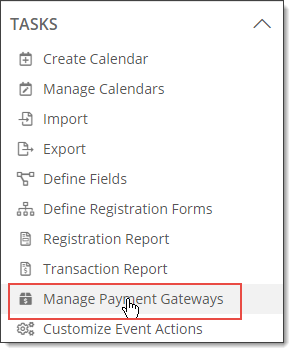
Tip Only Publisher account holders have the ability to manage payment gateways.
This name appears in lists and selections within the Trumba editing environment.
You'll enter this user name into your PayPal account in the next set of steps.
This list shows calendars that you created that are not connected to another gateway.
Important If you are not familiar with how changing the gateway will affect existing paid-registration events, ignore this step for now. You can change a calendar's payment gateway at any time later. To learn more, see Change payment gateways.
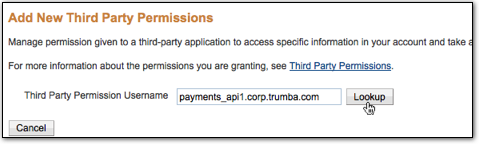
The Organization Trumba Corporation will be returned, along with a list of available permissions.
Then click Add
After you set up Trumba to process payments, you can set up a paid registration event.
