
Field overrides give you the flexibility to associate different default field values with different event templates and/or calendars.
Setting appropriate default field values saves time and reduces the probability of error. It can eliminate the need to repeatedly add identical field content and it can simplify event creation by limiting editors' choices only to relevant field values.
You can override the default state of any built-in or custom field whether that default state is blank or contains a value.
You determine the conditions under which the default overrides will apply by associating the override settings with a:
You can set up field overrides at any time. However, overrides you set up do not affect existing events. They affect only events you create after the override is set.
Use these examples to get a better idea for how field overrides work and how you might apply them to your own situation.
Problem A college that offers campus tours wants the same description content to appear in all tour events. The built-in Description field, however, is blank by default and that default state can't be modified.
Solution Set a Description field override for the campus tours event template by pasting the tour-related content into the template-specific Description field. Every future event based on that template will automatically include the tour-related content.
Problem A health club has four branches in different locations. The club wants to make it as easy as possible for branch editors to create events by pre-populating the branch location fields.
Solution Create a Locations directory. For each branch-based calendar, set a Location field override that makes the relevant branch the default.
I'd like more information about locations directories.
Problem The calendar editor who reviews and approves submitted events for a county tourism website notices that event submitters are using the Description field to provide lots of extra, unnecessary information about the events they submit. Having to read through and edit these extraneous notes is slowing down the approval process.
Solution To make the editor's job easier, the publisher sets a field override for the Submitted Events calendar, which is the calendar where submitted events are automatically placed until the editor approves them. The override changes the built-in Description field's default maximum of 10,000 characters to a maximum of 350 characters.
I'd like more information about event submission forms.
In general with overrides, it's best to start broad and then move toward specifics. That is, it's typically best to set all the overrides that apply at a template level, and then move on, as needed, to additional calendar-level overrides.
For example, at the template level, you might want to override the empty built-in Description field with custom notes content. Then, for a subset of the calendars that use the template, you could refine the notes content further to meet the specific needs of each calendar's audience.
After you select the event template and/or calendar conditions for which you want to set field overrides, in the field overrides form, you'll most likely see gray values and settings in some fields. The gray color indicates that these values and settings are inherited.
Tip Remember, you aren't stuck with inherited (or blank) field values. When it makes sense for a specific condition, you can override any inherited value you see.
Inherited values and settings come from:
Global defaults include built-in field defaults and defaults you set when you create custom fields. Many global default settings are blank.
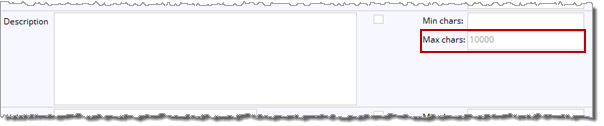
Global default: The built-in Description field comes with a default maximum character limit of 10,000.
For example, suppose you set a Location field override for Template A. Then, you decide to go deeper and set an override for the Instructor field on each calendar that uses Template A. Each of those calendars inherits the Location default value from the Template A override.
The following image shows how the inheritance hierarchy works. Each set of conditions is a subset of the previous one.
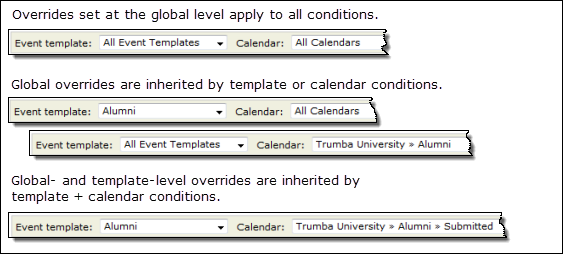
Field overrides inheritance hierarchy
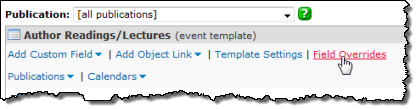
Tips
For example, to set default Description content for campus tour events, you might select the Campus Tours event template.
For example, to set the appropriate default location for a health club branch site, you might select the branch-specific calendar.
For example, to display only the specific aquatic event types a health club branch offers, you might select the Aquatic Events template and the branch-specific calendar.
Tip As you're changing field defaults, keep in mind that you can revert to the inherited value at any time by clicking this button next to or below the field:  .
.
Tip If you want to change the allowed values for a selectable field, see the section below about the Other Settings column.
When I click in a multi-line text field, I see a toolbar. What is that toolbar for?
Or, if the check box is already selected and you don't want to require a field value, click the check box twice to clear it.
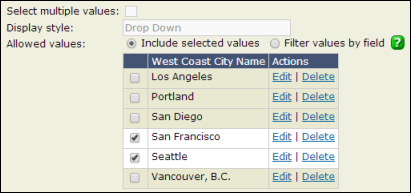
These settings mean that, for the current condition, event creators will see only Seattle and San Francisco in the City field on the add/edit event form.
Tips
Tip For help locating an existing override, click Current Overrides at the top of the Edit Custom Field Overrides page. A sortable list appears, where you can quickly scan for the correct template, calendar, and field. Click Edit to the left of each row to open the editing page for each field.
This means that when you finish setting overrides for one condition, you can:
Tip To cancel the override settings you just made, click Cancel at the bottom of the form. Note that this action cancels all overrides you just set for all conditions.
