skip navigation
Trumba Web Calendar Software
Trumba Help Center What’s New | FAQ | Support Forum | Email Support

Field types and default values

Note If you ended up here because you're looking for help with custom registration questions, you're in the right place. Registration questions are really just custom fields that you use on event registration forms.

For each custom field you create, you can choose:

Field types

When you create a custom field, you choose the specific type of field you want to create. Descriptions of each type follow the image.

The type of field you choose determines the customization options you have. For example, the image shows the options for a single line of text field versus a list of choices field.
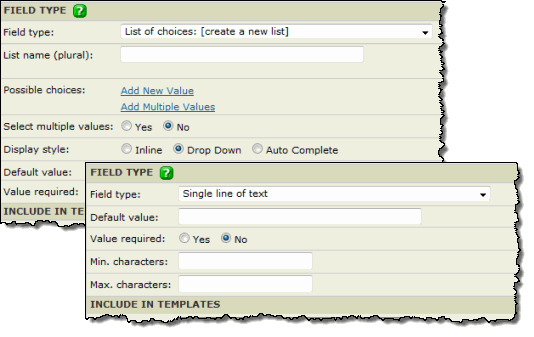
Different field types have different customization options
Available field types

  • Single line of text A short text string, such as the name of a person or event category.
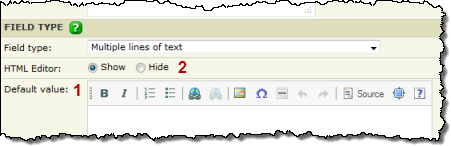
  • Multiple lines of text Similar to the built-in Notes field, a place for longer text strings or text that contains multiple paragraphs.

    HTML editor options, multi-line text field

    Multi-line text field tips

    • The HTML editor in the Default value field (1) makes it easy for you to format field content. Learn more.
    • As this custom field's creator, you can also decide whether or not editors who add and edit events will see the HTML editor in this field in the Add/Edit Event form (2).
  • List of choices A list from which calendar editors can select one value or multiple values. For example, you might create an Audience field with values such as Children, Teens, Adults, and Seniors.

    A field that is a list of choices also includes these settings:
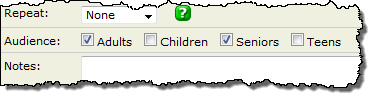
    • Select multiple values For an Audience field, you might select Yes, which lets calendar editors indicate that an event is appropriate for both adults and children. For an Event Type field, on the other hand, you might select No because each event falls into only one type category.
    • Display style Decide between displaying the list of choices values:
      • Inline When Set multiple values is:

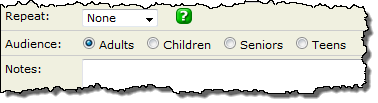
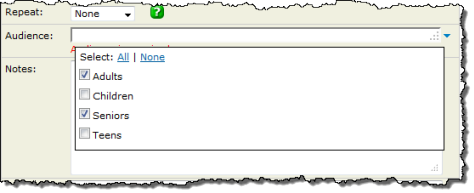
        Yes, inline values appear as check boxes. You can select multiple check boxes.

        Inline values, multiple values

        No, inline values appear as radio buttons. You can select only one radio button.

        Inline values, single value

      • Drop Down When Set multiple values is:

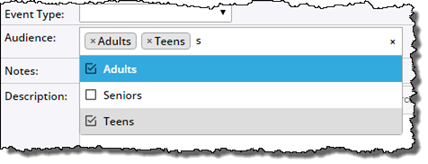
        Yes, drop-down values appear as check boxes in a drop-down list. You can select multiple values.

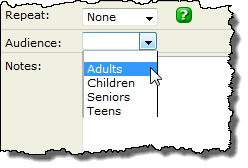
        Drop-down values, single value

        No, drop-down values appear in a simple drop-down list. You can select only one value.

        Drop-down values, single value

      • Auto Complete Available only when Set multiple values is No.

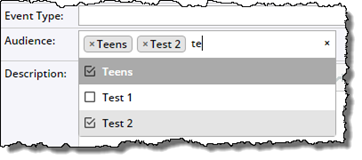
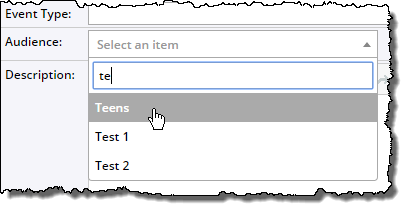
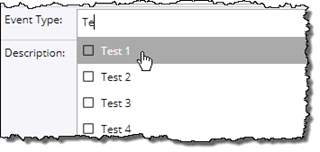
        Auto Complete means that when calendar editors start typing, a list of the values that match the letters they type appears, allowing editors to select the value they want. Most useful for list of choices fields with a long list of values.

        Auto Complete values

      Learn more about list of choices fields

  • Yes or no Lets editors select and visitors view whether the field description is true or not for an event. For example, on an academic calendar, a yes/no field could indicate whether students need the instructor's permission before registering for a class.
  • Number A positive or negative number that can include any number of decimal places. For example, you could use this field for event capacity.
  • Currency Prices such as event admission or ticket cost. This can be a whole number or a number with two decimal places. Editors can also add currency symbols such as the yen (¥), euro (€), pound (£), dollar ($), and generic currency symbol (¤).
  • Web link The address (URL) of a web site where viewers can find additional or related information.
  • Email address A way for visitors to get more information about an event via email.
  • Phone Select the setting that represents the type of telephone number that you want to add. If you publish the field, this can serve as a telephone number that calendar visitors can call for more information about an event.

    The following scroll box lists some examples of valid and invalid USA and Canada telephone number formats (International is more flexible).

    Valid formats

    • 555-555-5555
    • (555) 555-5555
    • 555.555.5555
    • 1-555-555-5555
    • 555-555-5555 ext 111
    • 555-555-5555 ext111
    • 555 555 5555
    • 5555555555
    • 555-5555
    • +1-555-555-5555
    • 555-555-5555 x111
    Extensions can have up to five digits.

    Invalid formats for 7- or 10-digit telephone numbers

    • 555-555
    • 2-555-555-5555
    • 555-555-55555
    • 555-555-ABCD

    If you want to use a telephone number that uses letters to spell a memorable word, choose the Single line of text field type for your phone number.

Back to Create custom event fields

Back to About custom registration forms

Set default values and other requirements for fields

When you define your custom field, you can specify whether calendar editors must enter a value for it, and whether they must enter a minimum, maximum, or specific value or number of characters. If an editor doesn't populate the field correctly, a message appears explaining the requirement, and the event cannot be completed without meeting it.
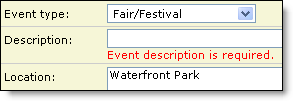
Require calendar editors to enter a value for a field

You can require a value for a field without entering a default value. Or you can provide a default value that appears each time a calendar editor creates or edits and event that includes the field.

A default value can be a description of the kind of information the field should hold. For example, in the field grid that appears in some published-calendar view settings, the default value for the drop-down list is [add new field], to indicate what the list is for.
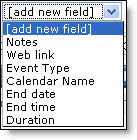
Set requirements for number of characters or numeric value

For single- or multiple-line text fields, use Min. characters and Max. characters to set the field-length requirements.

For example, if editors will populate the field with a catalog number that must always contain six characters, you can enter the number 6 for both the min. and max. characters.

For Number or Currency fields, use Min. and Max. value to require a value within a limited range. Decimals are allowed in both fields, however, the Currency field has stricter requirements.

Notes for setting default values

  • Setting the min. or max. characters or values is optional.
  • In the text fields, numbers are considered text characters. If you want to set limits on numeric values, use the Number or Currency field.
  • If you do not require editors to populate the field, you can still set min. or max. The field will comply with the min. and max. settings if an editor or event submitter enters data in the field.
  • You can use custom field overrides to set different default values for a field for each calendar or event template in which it's used. Learn more…

Publish a custom field

On the Create a New Custom Field or Add Registration Question form (from your calendar editing page, click Define Custom Fields), you can determine whether to make information in your custom field available on your published calendar or your event submission form.

By default, fields are published, so that your calendar visitors can see them and their content. If you do not want to include the field on your published calendar—for example, the field will contain contact information for the person who submitted an event—for Visibility, clear the Allow this field to be published check box.

To allow people who submit events to your calendar to see and populate your custom field, select Show this field on the public submit event form.

Note These two settings are independent. You can make fields available on your event submission form without publishing them on your calendar, and vice-versa.

Privacy | Terms | Public Calendars