skip navigation
Trumba Web Calendar Software
Trumba Help Center What’s New | FAQ | Support Forum | Email Support

Search spuds

You allow your calendar visitors to search for events by keyword, location, and/or date by adding Search, Location Search, and Go to Date spuds to the page on your website that includes your published calendar.

  • The Search spud allows calendar visitors to find events that contain specific keywords or keyword combinations.
  • The Location Search spud allows calendar visitors to find events that take place within a specific distance of a geographical location (for example, within 15 miles of Vancouver, WA or within 20 kilometers of Vancouver, British Columbia).

    Tip The Location Search spud works only with events that have map links. Learn more about adding map links.

  • The Go to Date spud allows visitors to navigate to a specific date.

What are spuds?

What you can learn in this topic

How to make search available

You make search available for a published Trumba® calendar by embedding the code for Search and Go to Date spuds into the page on your website that contains your published calendar. The spud code is automatically created during the calendar publishing process.
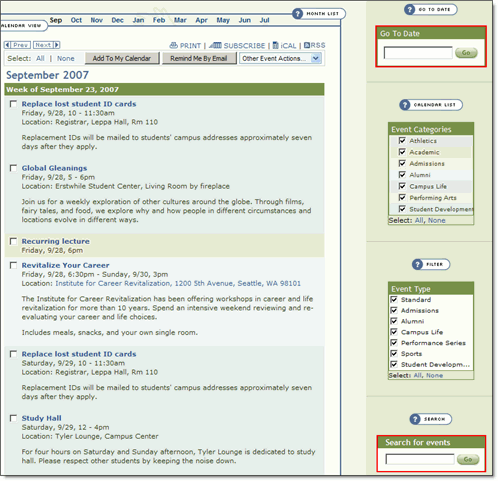
The Go to Date and Search spuds to the right to the calendar spud are outlined in red.

Important note

We've been working to make keyword search as effective as possible while not compromising performance for the entire Trumba Connect website. We've found a balance that has some implications for how soon search is available after you enable it. Over time we expect search availability to improve without affecting site performance.

  • Events added to your calendar prior to the day you publish for the first time If you publish a calendar for the first time, events that you added prior to the day you publish won't appear in search results for about 24 hours. To prevent calendar visitors from getting failed search results, you might want to publish the calendar, wait a day, and then enable the search option.
  • Events added to your calendar or updated the day you publish for the first time Events you add or update the same day you publish a calendar for the first time appear in search results about five minutes after you publish.
  • Events added to or updated on an already-published calendar When you add new or update existing events on a calendar that is already published, it takes about five minutes for those events to appear in search results.
  • Events on an already-published calendar for which you enable search If all you do is enable search for a calendar you published previously, all of the events are immediately available in search results.

Tip There is no time delay for location searches. Events are immediately available in location search results.

What parts of an event record get searched

  • For keyword searches using the Search spud, Trumba Connect looks for keywords in these fields:
    • Event description (title)
    • Location
    • Notes
    • Any custom fields you may have added to your events.
  • For geographical location searches using the Location Search spud, Trumba Connect looks for a map link in the Location field.

Tip These fields get searched even if you choose not to display them on the published calendar. How do I choose which fields I want to display or hide?

What keyword search queries are valid

Valid

Invalid

  • A single word
  • Multiple words
  • A truncated word or words followed by an asterisk (*)
  • Boolean operators, such as "and," "or," and "not"
  • Single letters or numbers
  • Common words, such as prepositions and articles

Sample keyword search queries and search results

Typing this termResults in
aikidoEvents that contain the word "aikido."
sword formEvents that contain both the words "sword" and "form." The words don't have to be together or in the same field.
sword and formEvents that contain both the words "sword" and "form." The word "and" is ignored.
sword or formEvents that contain both the words "sword" and "form." The word "or" is ignored.
3No events. You can't search for single characters.
Studio 1Events that contain the word "studio." You can't search for single characters.
sword*Events that contain the words "sword," "swords," "swordsmanship," etc.

What date search queries are valid

Valid

Invalid

  • October 2010
  • 2010 October
  • Oct 2010
  • 10/15/10
  • 10/15/2010
  • 15/10/10
  • 15/10/2010

How search results are presented

In response to every search, a search results bar appears above the calendar.
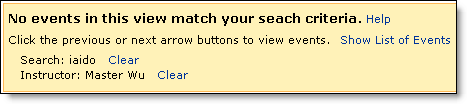
This search results bar shows the results of a keyword search for "iaido" limited to classes taught by "Master Wu." While there are no results in the current view (for example, the current month), the searcher can click Show List of Events to display the events that match the search criteria. Clicking Clear clears the search criteria.

The information site visitors see in the search results bar depends upon the calendar view. The following table summarizes the search results you see for various calendar views.

Search results summary


Calendar viewWhat displays
List
Compact List
3 Columns
Classic Table
  • A list of events immediately appears.
Performance
News
  • A list of events immediately appears.
  • Click Show List of Events link in the search results bar to see the events in List view.
Classic Multi-Week
Classic Month
Classic Week
Classic Multi-Day
Classic Day
Conference Schedule
  • Events appear immediately only if they occur in the displayed time period.
  • You might see both a link in the search results bar and a message that no events could be found.
  • Click Show List of Events link in the search results bar to see the events in List view.

For example:

  • The search results bar for a successful search on a calendar in Performance or Month view might look something like this:

    Clicking the Show List of Events link in the search results bar displays events that match the search criteria in List view.

  • The search results bar for a successful search on a calendar in List or Compact List view might look something like this:

    Because events matching the search criteria are immediately listed in the current calendar view, no Show List of Events link appears in the bar.

  • If the search is unsuccessful for a calendar in any view, the search results bar looks like this:

    When no events match the search criteria, no Show List of Events link appears in the search results bar. A No events match your search criteria message appears in the bar.

I'd like to see your instructions for calendar visitors about how to interpret search results

How to add search spuds to your website

Tip To go directly to instructions for configuring spuds and pasting the spud code, scroll to the bottom of the page.

When you publish a calendar, you automatically create a group of control spuds, including a labeled keyword Search spud.

After you configure and customize the control spuds, you add them to your website by copying the JavaScript™ code that Trumba Connect provides and pasting it into the page on your website where you display the published calendar.

In the Trumba University demonstration calendar, we positioned Search and Go to Date spuds to the right of the embedded calendar spud.

Keyword search spud options: You have a choice between two keyword search spuds:

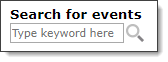
  • Search spud with a label.
  • The Search spud with a label includes a pre-labelled text box and Go button.

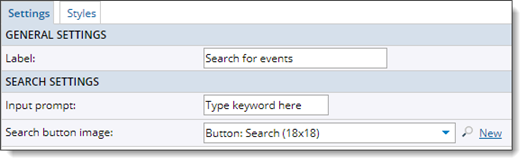
    You control what the label says and the fonts and colors of the label. You can also replace the default button with your own button image.

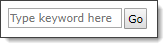
  • Search spud without a label.

    The Search spud without a label is just a text box and Go button.

    You can replace the default button with your own button image.

Location Search spud options: You have several options for customizing the Location Search spud:

  • Miles versus kilometers
    • To set the location search unit of measure, in the Publishing Control Panel, on the Publish Settings tab, click Edit Publish Settings. In the Publish Settings section of the form, select the unit of measure you want to use.

      Location Search spud with kilometers as the unit of measure

  • Default versus custom options
    • By default, the Location Search spud has a label ("Location"), a prompt ("within"), and a multiple-line layout.

      Default settings for Location Search spud

    • You can modify the default settings to get the look and behavior you want.

      For example, you can delete the label, change the prompt, and use a single-line layout.

    • Tips
      • The multiple-line layout works well when you're embedding the Location Search spud beside the main calendar spud. The single line layout works well when you have more horizontal space. For example, you might embed the spud above the main calendar.
      • Use the Search button image field to replace the default Go button with a custom image.

To configure search spuds and copy and paste the search spud code

  1. In the Trumba editing environment, display the published calendar that you embedded into your website.

    I need more information about publishing and embedding calendars

  2. Click Publish above the calendar.
  3. On the Publishing Control Panel page, click the Control Spuds tab.
  4. To embed a Search spud with a label, in the Search box, click Edit Settings & Styles.

    To embed a Search spud without a label, a Location Search spud, or a Go to Date spud, click Add a Control Spud. Select Search Unlabeled, Location Search, or Go to Date, and then click OK.

  5. On the Edit Settings page, on the Settings and Styles tabs, select the options you want, and then click OK.

    Tip As you select spud settings, use the Preview button at the bottom of the form to preview the results before you save.

  6. Back on the Control Spuds tab, in the Search, Search Unlabeled, Location Search, and/or Go to Date boxes, copy the JavaScript code and paste it into the page on your website where you embedded your published calendar.

How to turn off search

To turn off search for a published calendar, remove the Search and/or Go to Date spud code from the page on your site where you pasted it.

Privacy | Terms | Public Calendars