
Event information is stored in fields. For example, each event contains fields for the event name, start date, and start time. In .csv, .txt, .xls, or .xlsx files, each field is a column. The first row of the files includes the field names as column headings.
Tip This topic covers field mapping for the file types listed in the previous paragraph. If you're importing an iCalendar file (.ics format), see Prepare iCal files for import.
During the import process, you'll be prompted to map fields if:
For example, in the file you're importing, a custom field may be called Cost while in Trumba that same field is called Price.
Learn more about importing custom fields in Retain fields while importing.
Mapping fields is key to a successful import because if Trumba can't find a match for a field in the imported file, information from that field will not appear in events on the Trumba calendar.
The mapping step in the import process gives you the opportunity to resolve naming discrepancies. For example, by mapping the Subject field from a file to the Title field in Trumba, you ensure that event titles show up properly in Trumba calendar events.
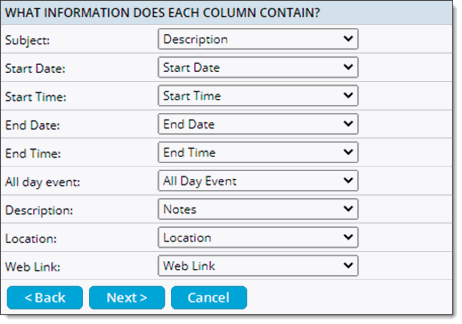
Mapping fields step in the import process
Field names from the file you're importing appear on the left. From the drop-down menus on the right, select the Trumba fields that map to the file's fields.
If the file you're importing names these fields something besides Description, Start Date, and Start Time, you can either change the field names in the file before you import or map the file's fields during the import process.
Tip If, in the file you're importing, event dates and times are combined in single columns, map those columns to the Start Time Date and End Time Date fields in Trumba.
