
To publish a Custom Object, you first enable that Object on a calendar. The calendar on which an Object is enabled owns the Object's records.
I'm not sure how to enable a Custom Object on a calendar.
When you publish the owning calendar or mix the owning calendar into a calendar you publish, you also publish the enabled Custom Objects.
After a Custom Object is published, you use the Publishing Control Panel to customize the behavior and appearance of the Object spuds.
Show me instructions for how to publish a calendar.
I'm not sure what you mean by mixed-in calendars.
When you publish a Custom Object, you automatically create a set of spuds that you can embed into your website. You have many of the same options for customizing these Object spuds as you do for calendar spuds.
For example, on the [Object] Spuds tab in the Publishing Control Panel, you can:
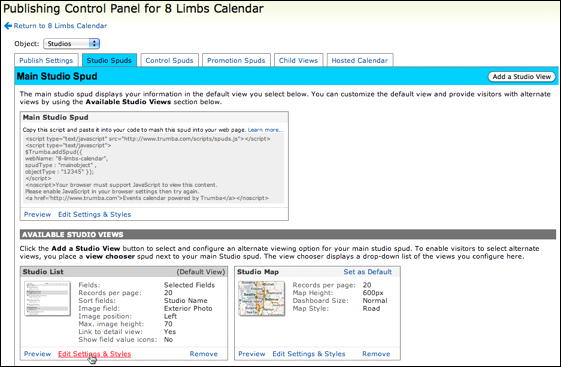
Customizing a view in the Publishing Control Panel
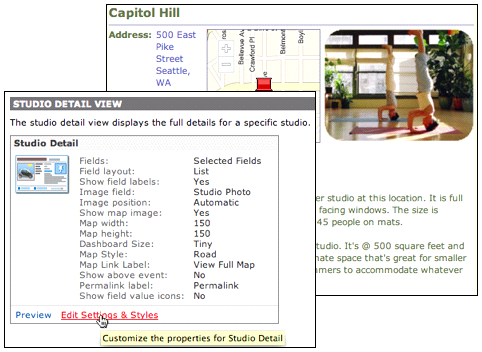
Customizing the detail view in the Publishing Control Panel with a preview of the detail view behind.
Tip For each Custom Object, you have the option of turning popups on or off.
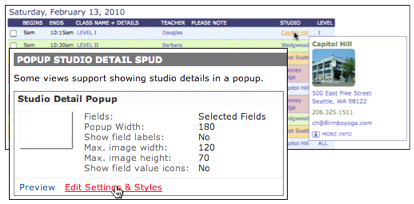
Customizing the popup view in the Publishing Control Panel with a preview of the popup behind.
Give me more background on publishing, customizing, and embedding spuds.
Show me detailed instructions for selecting and customizing views.
A child view is a view of events or other Custom Object records that you add to an Object detail view.
For example, for this detail view of a studio, the Yoga Center added two child views called Classes and Teachers.
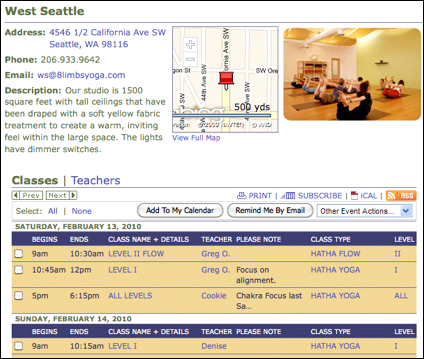
Studio detail view with two child views
The Classes child view lists only class events held at the West Seattle studio. The Teachers child view lists only teachers who teach at the West Seattle studio.
By including child views in each studio detail view, the Yoga Center provides site visitors with a complete picture of each studio's activity in one handy location.
I'd like to read more about what child views are and how to add them.
Use control spuds in connection with Custom Objects to make Object records easier to find.
For example, on the page where the Teachers Object spud is embedded, the Yoga Center included a Studio filter spud. This allows site visitors to see only teachers that offer classes at the specific studio they attend.
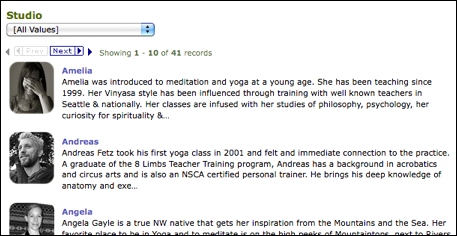
Studio filter control spud with Teachers Object.
Tell me more about control spuds.
Use promotion spuds in connection with Custom Objects to promote the information the Object contains and to direct site visitors to the page where the Custom Object spud is embedded.
By setting a custom field filter, you can tailor promotion spuds for specific purposes.
For example, the Yoga Center might create Teacher promotion spuds filtered by studio and embed each promotion spud on the appropriate studio detail page.
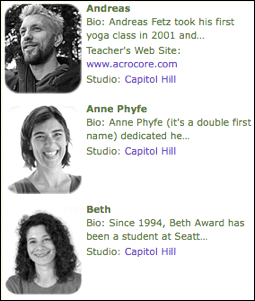
Teacher promotion spud filtered by studio.
Tip Use the Filter/Search Options section to filter the content of the promotion spud by custom field.
Tell me more about promotion spuds.
By default, Custom Object spuds derive their styles, colors, and icons from the calendar that owns them. If you have configured the calendar settings to match your website, published Custom Objects will match your website as well.
As with calendar spuds, you can override the default settings by editing the styles for individual Custom Object spuds.
