
In the editing environment, you can print any calendar that you can view.
By default, visitors can print calendars you publish. You can customize a print view so the printed versions include your logo, calendar name, and other information.
Published calendars are printable by default. With the Print calendar action enabled, visitors can click a Print link or icon at the top right side of the calendar to print the calendar view that is currently on the page.
Note The links you see in the Calendar Actions panel above your published calendar might look a little different from the links in the following image.
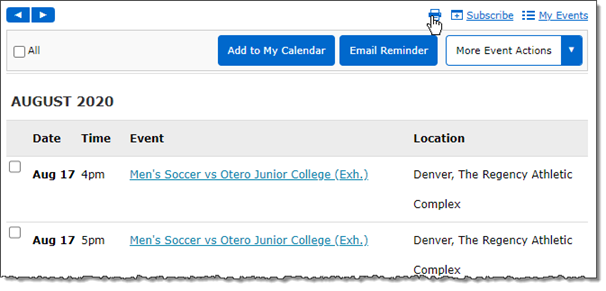
Print icon above a published calendar.
Tip If you prefer, you can hide the Print link or icon (as well as other calendar actions) from the Calendar Actions panel by customizing the main calendar spud.
If you publish schedules that site visitors often want to print, it's a good idea to set up print view.
Set-up options include adding a banner image to the top of print view, showing the calendar name in the header, and showing the print date/time in the footer.
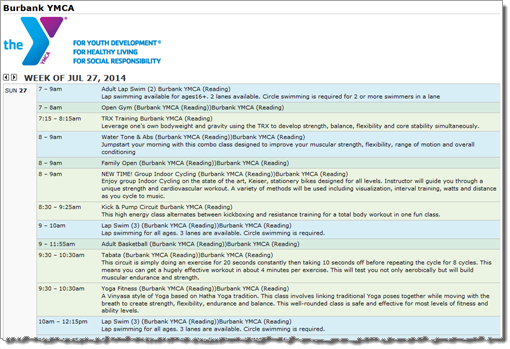
Customized print view with a banner image and the calendar name in the header.
Tips
With the action enabled, a Print link appears at the top right of the calendar view.
For example, if a visitor filters by an event type and/or searches for a keyword, what prints is the list of events that match the filter and search criteria. If a visitor displays events in Table view, then Table view prints.
You set up a published calendar's print view at the main calendar spud level. This means that the same print view settings apply to all the calendar views you add and customize.
Tell me more about main calendar views.

Print view settings, Main calendar spud.
Tip If you don't see the Print link or icon, the Print calendar action is disabled. How do I enable the action?
A new browser tab or window opens that contains a preview of your print view.
Tip If you let visitors switch between calendar views, you might want to preview the print view with each calendar view selected.
When visitors click the Print link or icon above a published calendar, a new browser tab or window opens with the calendar in it. If you customized the print view, the calendar reflects your print view settings.
To print the customized view, visitors use the web browser's print command.
As an account holder, you can print any calendar you can view in the editing environment.
Tip If events on the calendar are not all the same color, it means that you've mixed events from other calendars in to the calendar you're printing. If you don't want the mixed-in events to appear in the printed copy, in the calendar list on the left, clear the check boxes for calendars with colors that match the events you want to hide.
A new browser window opens with your calendar in it spread across the entire width of the window. When you print, the calendar information will stretch from margin to margin.
Tip If you're printing a 5-Week or Month view, it's best to set the page orientation to Landscape.
For event background colors to show up on the calendar you're printing, in the web browser you're using, you must enable the option for printing background colors and images.
The way you enable the option differs depending upon the browser.
Note The information below is based on recent versions of the browsers. If you're using an older version, the printing background colors and images option may not be in exactly the same location.
Google Chrome™
Note If event background colors don't appear correctly, check the current browser version, as it may require a different extension.
Mozilla® Firefox®
Apple Safari™ (probably set correctly by default but you might want to check)
Tip Remember to disable the background colors and images option when you're finished printing if you don't want to end up with full color versions of all webpages you print.
You can generate a calendar PDF by taking advantage of the Save as PDF feature available in some web browsers, including Google Chrome for Microsoft® Windows and Google Chrome, Safari and Firefox for Mac OS®.
Tip If the calendar publisher decided not to provide a calendar Print link or icon, you can still save the calendar as a PDF by going on to the next step. However, the PDF may include other elements from the webpage in which the calendar is embedded.
Chrome for Windows or Mac OS, under Destination, click Change, and then click Save as PDF.
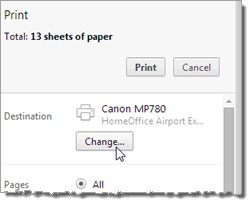
Changing to Save as PDF in Chrome.
Firefox or Safari on Mac OS, in the Print window, click PDF, and then click Save as PDF.
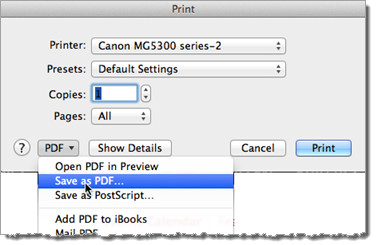
Changing to Save as PDF in Firefox or Safari on Mac OS
