If you're a Publisher account holder, you have access to a Publisher Dashboard where you can monitor the monthly activity (as far back as October 2020) for the published calendars in your account.
You can use the Dashboard to download reports of calendar activity (in comma-separate values (.csv) format that you can open in the Microsoft® Office Excel or other spreadsheet programs), modify your event promotion strategies, and improve event awareness.
Important You may see calendars listed in the editing environment for which activity data is not available in the Dashboard. You see data only for calendars that you have permission to publish. Learn more about permissions.
In addition to a summary list of your account's published and editable calendars, the Dashboard includes detailed performance data for each published calendar. The rest of this topic describes the summary section and the calendar-specific performance data in more detail.
When you first open the Dashboard, you see a list of all of your published calendars with information about how many times each calendar has been viewed in the last 31 days. Calendars are listed in descending order by number of views. For calendars with equal numbers of views, those with more future events are listed first.
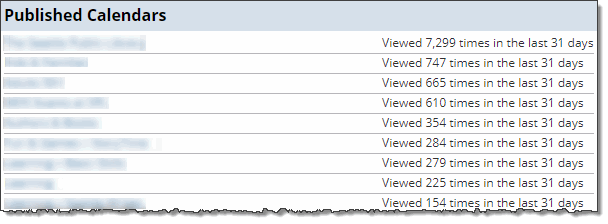
Published Calendars list (calendar names are blurred)
Tips
To return from the details page to the Published Calendars list, click the browser's back button or Done at the bottom of the details page.
Note If you only have one calendar in your account, all of the detailed, graphical data displays automatically just below the Published Calendars list.
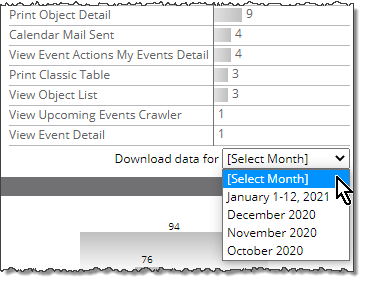
At the bottom of the page, in the Download Spud Views for All Published Calendars section, you can select the month (as far back as October 2020) from the drop down menu, for which you want to download a spud views report. The downloaded file is in comma separated values (.csv) format, which can be opened in Microsoft® Office Excel and other spreadsheet programs.
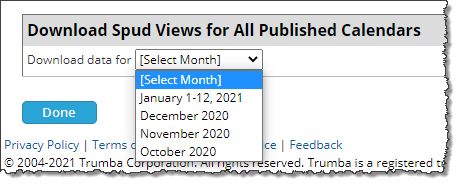
Click a month to download data for all calendars in the list (for the selected month)
In the following spud views report, on November 15, for the associated calendar, the List view was viewed 472 times. Visitors clicked events in the main calendar 197 times to view event details.
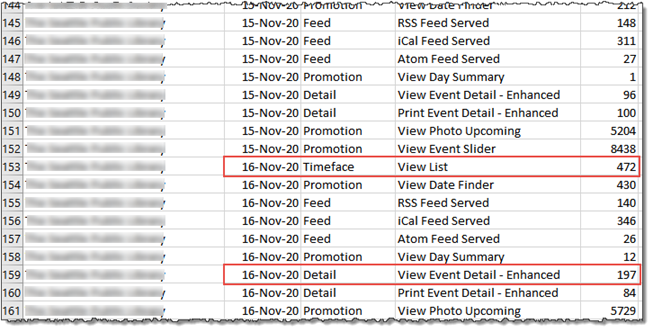
The Spud Views report is organized by calendar and then by date. For each day, it lists the number of calendar views, event detail views, event detail popups, and calendar feeds served. Tip The term "Timeface" refers to a main calendar view.
Note You can monitor the spud view data as far back as October 2020 for the published calendars in your account.
Tip If you prefer to download separate reports for individual calendars, you can do that in the Calendar description section, which is the first section you see after clicking a calendar name in the published calendars list.
After you click a calendar name in the high-level list of published calendars, the first thing you see is a description of the calendar's settings.
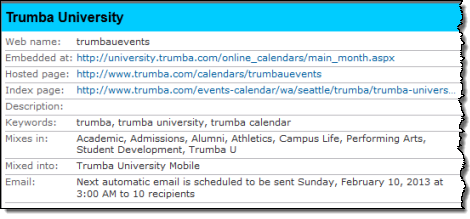
Individual calendar section, calendar description
Each calendar description is unique but all descriptions include at least some of the following information:
The web name you assigned to the calendar when you first published it.
The URL of the page on your website where you embedded the calendar.
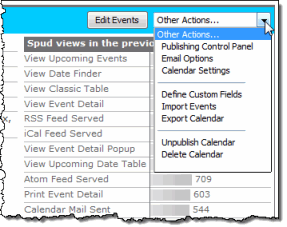
Tip If this link is incorrect, you can correct it. In the title bar of the calendar information form, locate the Other actions drop-down list. Select Publishing Control Panel, click the Publish Settings tab, and then click Edit Publish Settings. On the Edit Publish Settings page, under Publish Settings, for Calendar address, type the correct URL for the page on your site in which this calendar is embedded.
The URL on the Trumba Connect website where the calendar is hosted.
The URL for an index page that Trumba Connect creates automatically each time you publish a calendar. This index page is optimized for search engines.
Note You won't see this link if you have set your calendar to be unsearchable.
If you typed a description for your calendar when you created it, that information appears here. Providing a strong description makes it more likely that your calendar will show up in search engine results.
If you typed keywords related to your calendar when you created it, those keywords appear here. Providing strong keywords makes it more likely that your calendar will show up in search engine results.
The calendars listed here are calendars that you mixed in to this calendar when you published it.
Calendars with time zone settings different from this calendar will be highlighted.
If this calendar is mixed into other published calendars, those other calendars are listed here. In the example above, the calendar is mixed in to a published mobile view.
If you set up a scheduled calendar email for the calendar, information about when the next email will be sent appears here. In the example above, the next email will be sent on Sunday, February 10 to 10 recipients.
How do I set up a scheduled calendar email?
Tip If you want to change the scheduled email settings, at the top of the calendar section, in the Other Actions list, choose Email Options.
To the right of the calendar description, you see a Spud views chart.
The chart, which covers the last 30 or so days, lists spuds viewed, feeds served, calendar emails sent, and actions taken in descending order by number.
The following examples of spud view data from two different published calendars illustrate that each Spud views chart is unique. The information you see in your charts will depend upon the specific set of calendar view, promotion, control, event detail, and email spuds you configure for each published calendar.
Read the descriptions beneath the example charts for tips on how to interpret your own chart data.
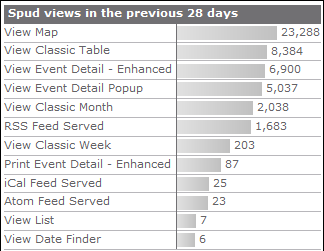
View Map, View Classic Table, View Classic Month, View Classic Week, View List
View Event Detail - Enhanced, View Event Detail Popup, Print Event Detail - Enhanced
RSS Feed Served, iCal Feed Served, Atom Feed Served, CSV Feed Served
|
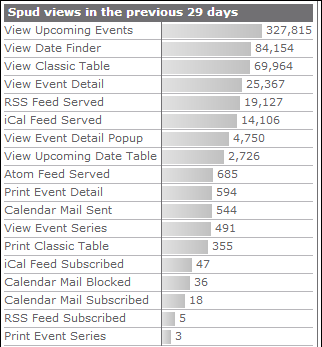
View Upcoming Events, View Date Finder, View Classic Table
Calendar Mail Sent, Blocked, Subscribed
|
Tips
|
|
In this section, bar charts make it easy for you to compare, on a day-to-day basis, four weeks' worth of main calendar spud, promotion spud, and event detail views.
The way the charts are presented makes it easy to tie peaks and valleys of activity to specific event offerings. You can also monitor how effective your promotion spuds are at driving traffic to your event calendar.
Tip The bar chart reports begin on the day you designated as the first day of the week in the calendar's settings.
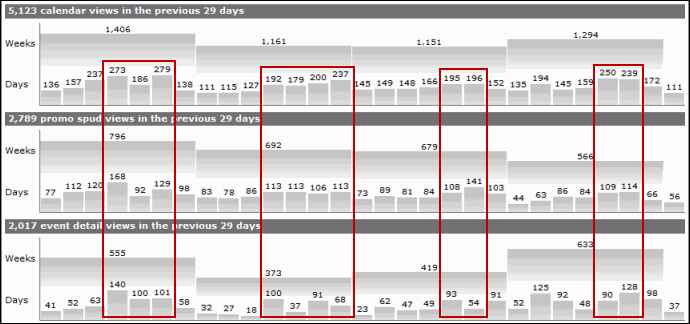
These charts suggest a correlation between promotion spud and event detail views. They also demonstrate that interest in events tends to peak later in the week.
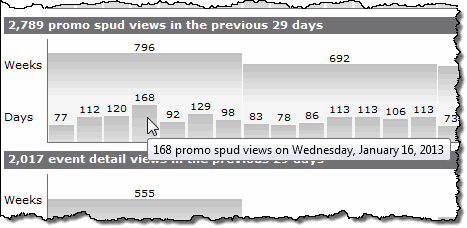
Pause your cursor over any bar in any of the charts to see the day and date the bar represents.
This section lists the eight to ten future events on your published calendar for which the event details page was viewed most frequently. Clicking the event title (blurred in the image) takes you to the add/edit event form where you can see or edit the event fields.
For each event, you can also see how many times visitors have added the event to their personal calendars, forwarded the events to friends, and set event reminders.
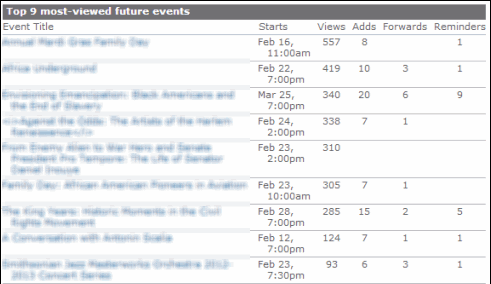
Most-viewed future events with event action data.
Tip At the bottom right, click a month link to download an event report. The report, which includes all viewed events, is organized by date. For each event, it lists the number of views as well as the number of times visitors added the event to their calendars, forwarded it to friends, or set up a reminder.
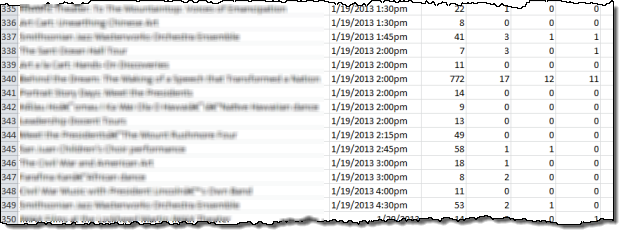
The report columns from left to right are Event Title, Starts (date and time), Views, Adds, Forwards, and Reminders.
From the event actions chart, you get a sense for how and how often visitors interact with your events.
For example, the following chart shows that the action visitors most commonly take is to add events to their personal calendars. Setting event reminders and emailing themselves or downloading event information come next.
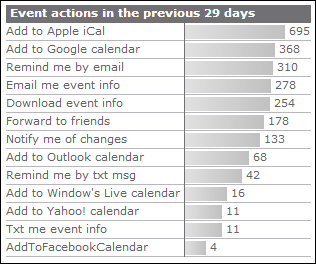
Event actions taken by visitors during the previous month
This summary of future events shows you at a glance how many events you have on the calendar for the current month and 12 months into the future.
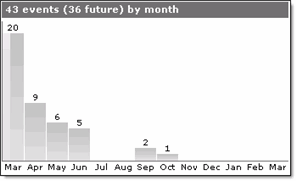
The chart extends 13 months into the future including the current month.
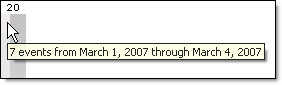
Pause your cursor over the lighter portion on the left of the first bar to see the number of events in the current month that are in the past.
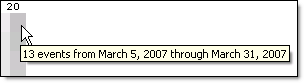
Pause your cursor over the darker portion on the right of the first bar to see the number of events in the current month that are in the future.