Popup spuds
Topic links
What are popup spuds
You can enable popups on promotion spuds and main calendar views. As the following images illustrate, with popups enabled, visitors who hover over dates or field labels see lists of events or descriptions of events and objects.
Date Finder spud with popup
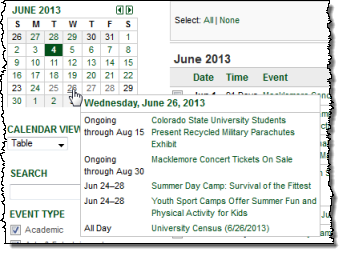
Popup from a date on the Date Finder promotion spud. Clicking an event title in the popup opens the event detail view in the main calendar.
Learn more about the Date Finder and Day Summary spuds.
Calendar Month view with event detail popup
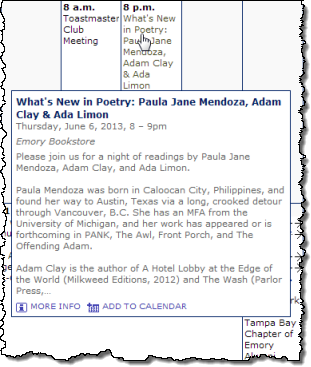
Popup from an event title in a main calendar Month view. Clicking MORE INFO in the popup opens the event detail view.
Calendar Table view with location object detail popup
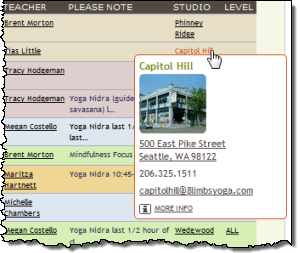
Object detail popup from a location in a calendar view. Clicking MORE INFO in the popup opens the object detail view.
The object popup has rounded corners. How do I round spud corners?
Where can I learn more about custom objects?
Enable popup spuds
You can enable event detail popups for:
- Most promotion spuds.
- Calendar views, such as Classic Table, Month, and Multi-Week view, where only the event title is provided.
When you enable object detail popups, you see the popups for object fields in:
- Main calendar views.
- Event detail views.
Tip Be sure to customize the event and object detail popup spuds so the popups look the way you want.
To enable event detail and day summary popups on promotion spuds and calendar views
- In the editing environment, make the published calendar active. Click Publish Settings.
- In the Publishing Control Panel, click the Calendar Spuds or Promotion Spuds tab. Find the spud you want to customize, and then click Edit Settings & Styles.
- On the Edit Settings & Styles page, click the Settings tab.
Tip If you're customizing Classic Table View, click the Events tab. If you set up more than one featured event layout, you might have multiple Events tabs, one for each layout. Each tab has its own popup settings.
Tell me more about featured event layouts.
- Under Popup Settings, for the setting Popup details spud, select the type of popup spud you want to enable, or select None to disable popups.
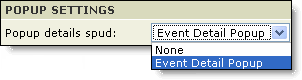
Tip If you're customizing the Date Finder promotion spud, the popup details spud is Day Summary rather than what is shown in the image above. Learn more about the Day Summary spud.
- Repeat the previous three steps for each spud for which you want to enable or disable popups.
To enable object popups on main calendar and event detail views
- In the editing environment, on the left under Tasks, click Define Fields.
- On the Define Fields and Objects page, for Publication, select [all publications].
- Scroll through the templates and objects list until you find the object you want to modify.
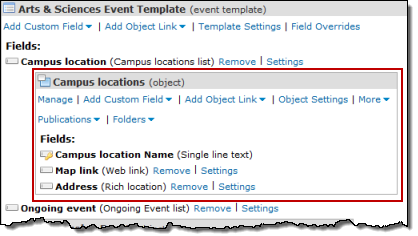
Object in the Define Fields and Objects list
- Click Object Settings.
- On the Edit Custom Object page, scroll to the bottom of the form. In the Publish Link Settings section, for Popup details, select Yes.
- Click OK.
- To preview the popups, in the Publishing Control Panel, on the Calendar Spuds tab, preview calendar views that include the object field, and hover over the field.
How do objects and calendar views work together?
Customize popup spuds
The popup spud you customize depends upon the spud where the popup originates and the popup type. To control the appearance and behavior of:
Tip It's worth spending some time carefully reviewing and experimenting with the customization options for your popup (and other) spuds. By taking full advantage of the options, you can integrate spuds fully into your website and give visitors the best possible experience. Learn more.
Can I round the corners on popups?
To customize an event detail or day summary popup spud
- In the Publishing Control Panel:
- If you're customizing an event detail popup for a calendar view or promotion spud, click the Calendar Spuds tab. Scroll to the bottom of the tab until you see the Event Detail Popup, and then click Edit Settings & Styles.
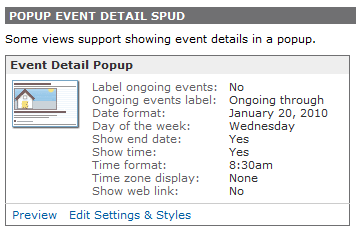
Event Detail Popup spud
- If you're customizing a day summary popup for the Date Finder spud, click the Promotion Spuds tab. Scroll to the Day Summary spud, and then click Edit Settings & Styles.
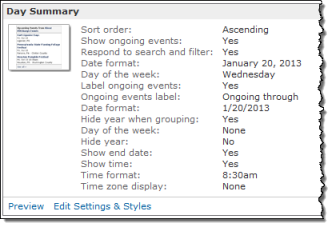
Day Summary spud
Tip If you don't see the Day Summary spud on the Promotion Spuds tab, click Add a Promotion Spud, select Day Summary, and then click OK.
- On the Edit Settings for Event Detail Popup, page, on the Settings and Styles tabs, set the options you want. Preview the settings. When you're satisfied, click OK.
Tips
- If you set base styles, those settings apply by default to popup spuds. You can change any base settings you want.
- If you include images in your events, a small version of those images appears in your event detail popups by default. In the Image Settings section of the Edit Settings for Event Detail Popup form, you can change the image size or hide the images altogether.
If an event includes both a detail and an event image, the detail image appears in the popup. Otherwise, the event image appears.
What's the difference between event and detail images?
Tip Day Summary popups do not include images.
- If you're customizing popups for a promotion spud you're using as a calendar, you most likely want to hide the More Info link that appears by default in the popup and links to a full calendar. To hide that link, on the Settings tab, in the Field Settings section, for Show more info link, select No.
- Preview the calendar view or promption spud for which you enabled and customized popups. Hover over an event title to see how the popup looks and behaves.
To customize an object detail popup spud
- In the editing environment, make a published calendar active. Click Publish Settings.
- In the Publishing Control Panel, from the Objects drop-down list, select the appropriate object.
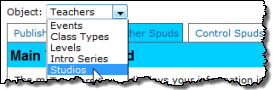
Scroll to the Popup [Object name] Detail Spud section.
- Click Edit Settings & Styles.
- On the Settings and Styles tabs, set the options you want. Preview the settings. When you're satisfied, click OK.
Tip If you set base styles, those settings apply by default to popup spuds. You can change any base settings you want.
- To preview the popups, in the Publishing Control Panel, on the Calendar Spuds tab, preview calendar views that include the object field, and hover over the field.
How do objects and calendar views work together?

