
The View Chooser spud is a control spud that you embed into the same page on your website as a main calendar view or custom object (directory) view. Using the View Chooser, site visitors can display events or objects in different ways by switching between views.
What you can learn in this topic
The View Chooser spud automatically lists all of the views you add to the Calendar Spuds or [Object Name] Spuds tab in the Publishing Control Panel.
How do I set up the calendar views visitors can choose?
How do I set up the object views visitors can choose?
If you don't want a view to show up in the View Chooser, you must remove it from the tab.
Views are listed in the View Chooser in the order in which they appear on the tab.
Tip To quickly change view order, on the Calendar Spuds or [Object Name] Spuds tab, find the view you want to move, and then click the up or down arrow located next to Set as Default in the upper right corner of the view box.

You can choose between two types of View Chooser spuds, the drop-down list type and the tabbed type.
The type you use probably depends primarily upon where you want to place the spud. If the spud sits beside the main calendar or object on the page, you probably want to use the drop-down list type. If the spud sits above the main calendar or object, the tabbed type probably makes more sense.
Tip With all View Chooser spuds, you can change the default names for the views that appear in the drop-down list or in the tabs. The examples below show View Choosers from a yoga studio website. In the spuds, the studio changed the name of the Performance Schedule view to Class+Scheduled Dates. Learn more about changing view names.
Labeled drop-down list View Chooser
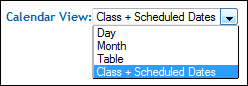
Labeled drop-down list View Chooser
What you can customize:
Unlabeled drop-down list View Chooser
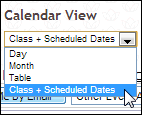
Unlabled drop-down list View Chooser
What you can customize:
Tabbed View Chooser
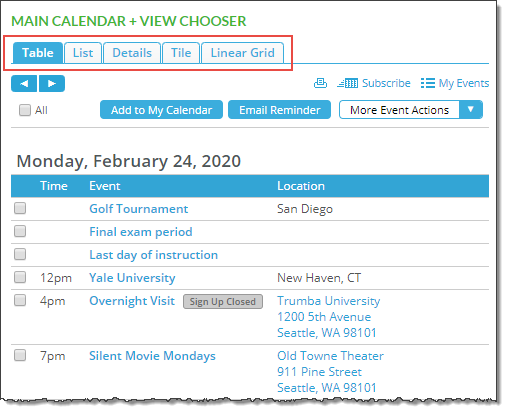
Tabbed View Chooser
What you can customize:
In some cases, the default calendar and object view names might not mean much to your site visitors.
For example, Performance Schedule view is an especially helpful view for calendars that contain repeating events, such as classes. Performance Schedule view groups all occurrences of one class together. This makes it easy for visitors to immediately see how many times the class meets and to add all of the sessions to their personal calendars.
The view name, Performance Schedule, however, doesn't help site visitors anticipate what they'll see by choosing that view. To make the view name that appears in a View Chooser spud more meaningful, a yoga studio changed Performance Schedule to Class+Scheduled Dates.
Tabbed View Chooser spud with custom name for Performance Schedule view
Tip View name changes you make affect all View Chooser spuds you create in connection with a published calendar or object.
If you include the View Chooser spud on your main calendar page, and don't hide it on mobile devices, visitors who are viewing the calendar on a mobile device could potentially use it to switch to a different view that isn't mobile optimized.
If you hide the View Chooser on mobile devices, however, visitors who are viewing the calendar on a mobile device can only see the mobile table view. (On a mobile device, the mobile table view is always applied as the main calendar's default view -- see Optimize your calendar for mobile.)
To hide View Chooser on mobile devices:
You change the names of views that appear in View Chooser spuds by editing the settings for those views.
The following steps assume that you already published your calendar or object and, in the Publishing Control Panel, added views and the type of View Chooser spud you want to use.
I need help publishing my calendar or object and adding control spuds.
Or, select the calendar that owns the custom object with view names you want to change, and then click the object's tab.
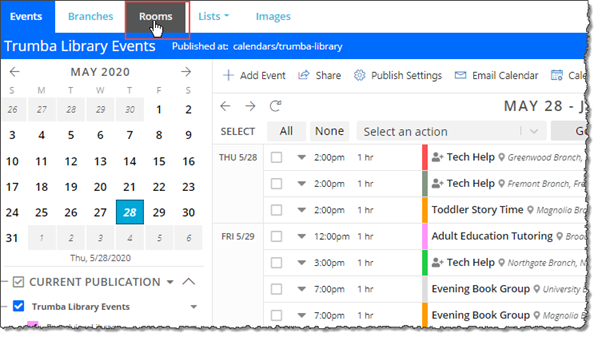
Clicking an object's tab in the editing environment
