
After you have added a submission form to your Trumba® Connect calendar publication, you can copy the code provided in the Publishing Control Panel into your web page to add the form to your site.
Once your visitors or colleagues can start submitting events, and if you have set up an approval process, you can start approving them. When you approve the events, they are placed on your live calendars.
Note Before you can add an event submission form to your publication or incorporate it into your website, you need to talk to a Trumba representative about enabling submission forms for your account. Learn more…
To add a submission form to your website, all you have to do is paste JavaScript code that Trumba Connect provides into the web page where you want the form to appear.
When you place the page that contains the submission form on your site, visitors or colleagues can start using it immediately.
Tip After you paste the code into your own webpage, you can change the width, height, and background color parameters.
The JavaScript code will look something like this:
The code parameter is an alphanumeric string that's unique to each of your calendars for which you add event submission forms. Do not alter this parameter.
The (optional) targetElement parameter is an alphanumeric string that specifies the ID of an HTML element, such as a DIV, where you want to place the event submission form. Use only if you’ve already declared the element on your page. If this parameter isn't specified in the spud code, or the ID isn't found, the event submission form is inserted in-place.
The width and height parameters (whose values are highlighted in the code sample above) are set to accommodate the typical size of a submission form, including error messages. You may have to alter these parameters in the code you pasted if your form includes a number of custom information fields, you set the submitter information to be in its own column, or you choose a vertical versus a horizontal layout for field labels.
In the code you pasted, you can replace white with a hexadecimal or CSS named-color value or the value transparent to change the background color of the form. (The background color of the fields in which event submitters enter data remains white regardless of the color of the form itself.)
Once your visitors or colleagues start submitting events, if you set up an approval process in the Edit Submission Form page, you can start approving the events. This section describes how to monitor submitted events and move the approved events from one or more holding calendars onto your public website calendars.
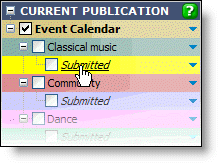
Tip You may want to uncheck all other calendars to start with to make sure you are only viewing events from the Submitted calendar.
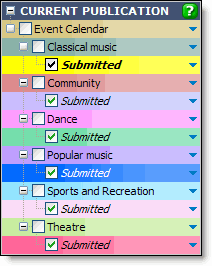
Mixing all of the Submitted subcalendars together allows you to see all of the submitted events at one time.
Caution Do not mix a Submitted calendar into your published calendar or any of its mixed-in category calendars. These calendars are live, so if you mix a Submitted calendar into one of them, submitted events appear live on your calendars immediately.
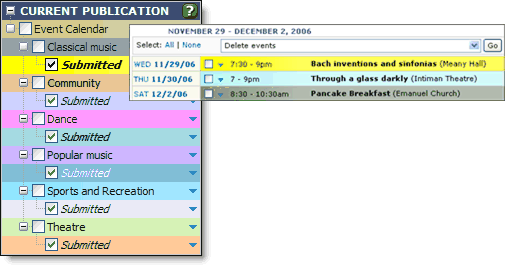
The colors of the submitted events correspond to the colors of the Submitted subcalendars in the calendar list, making it easy for you to see what categories of events site visitors have submitted.
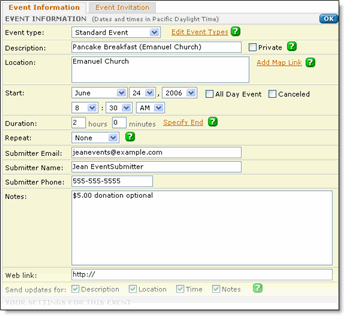
The submitter's name and email address appear in Submitter fields in the form but will not appear on the published calendar. You can modify the event title, location, or description to provide more details, include a map link, or otherwise meet your website standards.
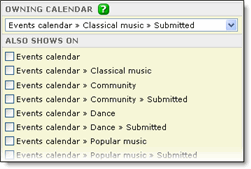
For example, because the submitter chose the category Classical Music in the event submission form, the Bach concert belongs to the Classical Music calendar's Submitted subcalendar (Events calendar > Classical Music > Submitted in the picture above).
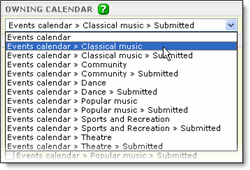
To move the event from the Submitted subcalendar to the Classical Music calendar (and publish it on your website), select the Classical Music calendar in the Owning Calendar list (Event calendar > Classical Music in picture above.)
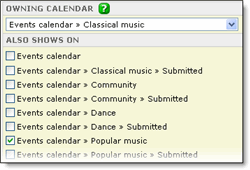
In the picture above, the Bach concert will appear on the Popular Music and Classical Music calendars.
If you are certain that you don't have to review each submitted event in detail, you can approve or delete multiple events at the same time.
Note When you bulk approve events, you cannot open and examine each one individually. If you receive event submissions from the general public, we recommend that you approve events one at a time.

Approving events moves them from Submitted subcalendars to a published calendar where they are visible to site visitors.
