
By reading the following descriptions about how time zones work in Trumba® Connect, you're less likely to be surprised by strange event times in your calendars. You'll also understand how to troubleshoot if such surprises do occur.
I just want to set my account or a calendar's time zone.
When you sign up for a Trumba account, you choose a time zone, generally the time zone where you live. That becomes your account time zone. You can change it at any time. When you change your account time zone, you also have the option of changing the time zones for some or all of your calendars.
How do I change my account time zone?
By default, new top-level calendars you create have the same time zone as your account time zone. New subcalendars have the same time zone as their parent calendars.
You can change any calendar's time zone at any time to reflect the calendar's purpose.
When you change the time zone of a calendar, event times adjust to reflect the change. For example, if you change to a time zone that is two hours ahead of your old time zone, an event that started at 12:00 pm will now start at 2:00 pm.
How do I set or change a calendar's time zone?
This is true both for published calendars and calendars you're editing in the calendar workspace.
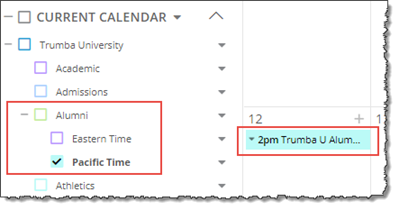
When you're adding and editing events in the calendar workspace, event times reflect the time zone of the selected calendar.
For example, in the following image:
To continue with this example, in the following image:
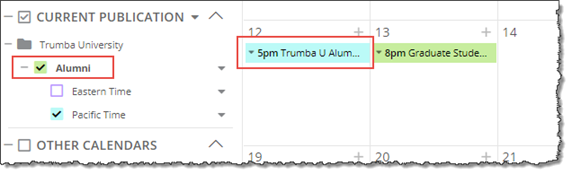
When you mix the events from one calendar into a published calendar, the events adopt the time zone of the published calendar.
(If you don't know what it means to mix in a calendar, see Mix-ins, paging, and grouping.)
For example, suppose you have a New York calendar set for Eastern Time and a Chicago calendar set for Central Time.
If you mix the events from the New York calendar into the Chicago calendar, the New York event times reflect Central time. If you mix the Chicago events into the New York calendar, the Chicago event times reflect Eastern time.
If, in consultation with your Trumba Connect support representative, you turned on event time zones for your account and you enabled event time zones for one or more calendars and/or event submission forms, editors and/or event submitters will be able to set a time zone as well as a start time each time they create or submit an event.
For organizations that sponsor events in multiple time zones, this makes event entry a lot more straightforward. Editors creating events that take place in time zones different from the calendar time zone don't have to worry about converting event times or developing other workarounds. Conversions happen seamlessly behind the scenes.
Note Remember that event time zones have no affect on how events display in the editing environment or in published calendar views. All event times reflect the time zone of the calendar the events are displayed on, regardless of individual event time zone settings. For example, suppose you create an event that starts at 7 pm and has a time zone setting of Pacific Time. On a calendar with a time zone setting of Eastern Time, the event start time displays as 10 pm.
I'd like to know more about event time zones.
If you change an event's owning calendar to a calendar with a different time zone, the event's start/end times convert to the new time zone.
For example, suppose you add an event to a calendar set for Eastern time. The event starts at 9 am and ends at 11 am Eastern time. Then, you change the event's owning calendar to a calendar set for Pacific time. The event converts to start at 6 am and end at 8 am Pacific time.
When you set an account or calendar time zone in Trumba Connect, you don't have to worry about Daylight Saving Time. Just choose the time zone that's appropriate for your location and set event times. These times automatically reflect whether DST is in effect or not.
Tip As of 2007, DST in the United States starts the second Sunday of March and ends on the first Sunday of November.
When you import events that you exported from another program, Trumba reads the time zone from the file you're importing.
During the import process, you choose a destination calendar for the imported events. If the destination is:
Tip During the import process, you can change the time zone for imported events (and shift the event times accordingly). This is a quick way to import events and, simultaneously, set a time zone for a new calendar or subcalendar.
Tell me more about importing events from other calendar programs.
As part of the publishing process, you have an opportunity to set the time zone for the published version of a calendar.
But the time zone for the published version always matches the time zone of the calendar itself. If you change the time zone for one, the time zone for the other also changes.
Tell me more about publishing calendars to the web.
You can change the time zone for any published calendar you're viewing. This is a temporary change that affects your view of the calendar only for the time you're looking at it. If you come back later and view the same calendar, you'll have to set the time zone again.
This is handy when your local time zone differs from the published calendar's time zone. For example, if you live on the West coast and you're looking at a published calendar for the New York Knicks basketball games, you can change the time zone from Eastern Time to Pacific Time so you can see local game times.
The Time Zone Picker is a control spud that you embed on the same webpage as the main calendar.

Time Zone Picker control spud
The Time Zone Picker is a control not a filter. Selecting a new time zone does not affect which events display on the main calendar. Instead, the control works in connection with the event Start Time field. When you select a new time zone, event times update to reflect that selection.
Site visitors from the Eastern time zone who are viewing a calendar set for Central time, for example, can use the Time Zone Picker to switch the entire calendar to Eastern time to view the events in their own time zone.
