Use this topic to learn how sessions work in your Trumba account, how long they last, and how to view session information.
Each time a user logs into Trumba, a session is created. Session information is stored and is configurable by customer account.
A session is created when a user signs into Trumba as a user (publisher or editor) or an event organizer.
Sessions can be deactivated in the following ways:
Note Users will be notified 5 minutes prior to the session expiration time or inactivity timeout and are given the opportunity to sign in and continue working without interruption.
Default session durations vary by user type:
On the Customer Information page, administrators can configure session settings:
Note If you select No for Allow Remember Me, the Remember Me checkbox selection will be ignored.
The Account Settings page shows the sessions for an individual account.
Administrators can run the User Sessions report. This report shows all user sessions used within the customer account and can be run with a variety of criteria.
The information available depends on your account type (Publisher/Editor, Administrator).
On the Account Settings page, users can view the following session information:

If you notice that a session is Active that you believe is suspect, you can sign it out manually.
To sign out a session:
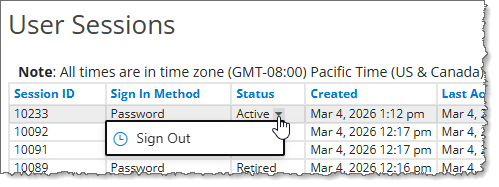
Administrators can view additional information about their sessions on the Account Settings page. To view sessions for individual users, use the Edit option from the Accounts page on the Settings menu. In addition, administrators can view all sessions within in the customer account using the User Sessions report.
On the Account Settings page, administrators can view the following session information:

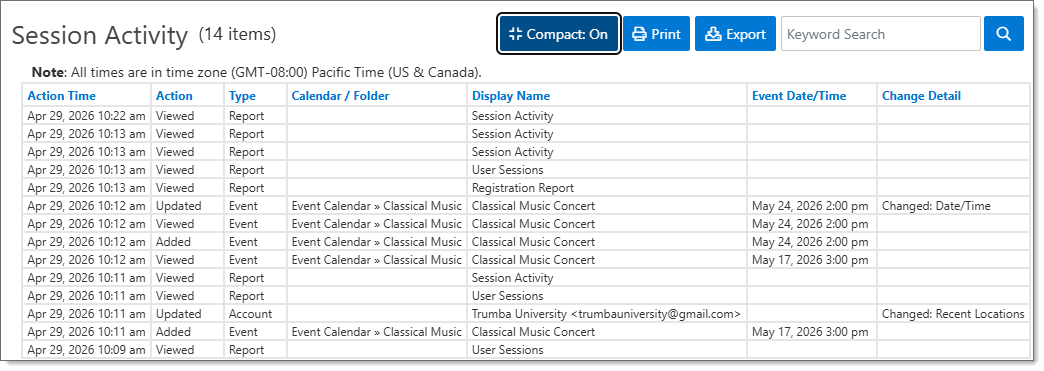
Administrators can view detailed session activity by clicking on the Session ID.
Users will receive a notification when their session is going to expire in 5 minutes. The notification gives the user the opportunity to sign in and continue working without interruption.
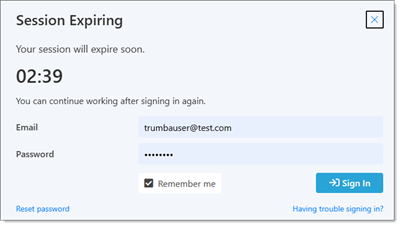
If you close the window before the expiration time, it will appear again in one minute.
Click the Sign in button to continue working; the notification window closes and a new session is created.
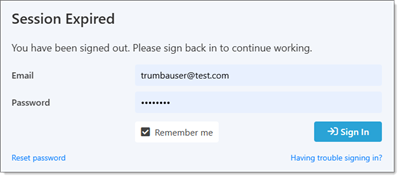
If the session expires, enter your email and password if needed, then click Sign in to continue working.
If Inactivity timeouts are enabled, users will receive a notification when their session is going to be retired if no actions are taken. The notification gives the users the opportunity to stay signed in and continue working without interruption.
Note Inactivity timeouts are different than session expirations. Inactivity timeouts are optional and customized at the customer level. Session expirations are required and not customizable.
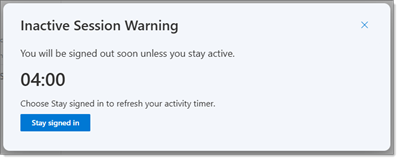
Click Stay signed in or just take an action in the Trumba environment to reset the activity timer.
If the session is signed out due to inactivity, enter your sign in credentials, then click Sign in to continue working.
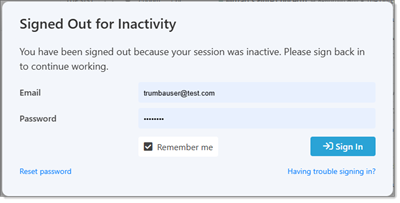
Note The Signed Out for Inactivity window may look slightly different based on the sign in method used.
The User Sessions report is available to customers that are designated as account administrators.
The report shows all of the sessions within the customer account. This report also allows an administrator to sign sessions out if needed.
To run the User Sessions report:
On the report, you can view additional information about sessions:
Note Click on the email address to view all sessions for the user.
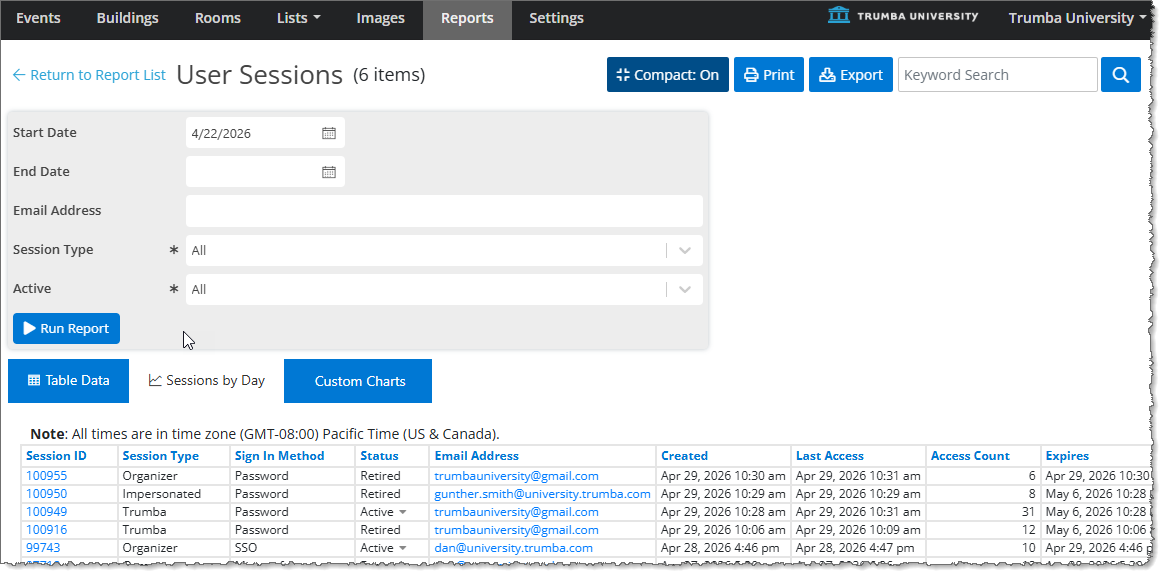
Click on a Session ID to view detailed session activity.
Click on the arrow next to the Active status for a session and select Sign Out to manually sign out a session.
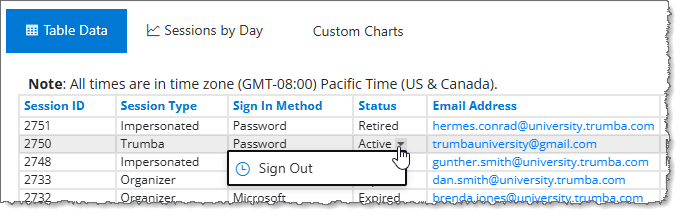
As with other reports, you can view in Compact mode, Print, Export, and Search the report. After running the report, you can also filter using columnn values and change the sort order by clicking the column name.
The Session Activity report is available to customers that are designated as account administrators.
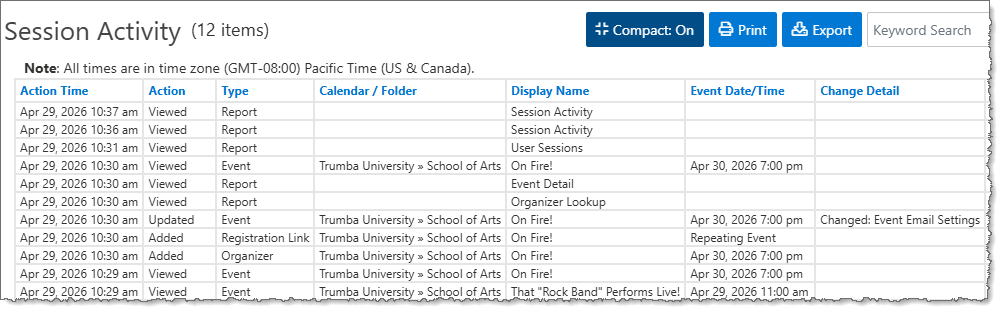
The report shows detailed actions taken within a particular user session, such as adding an event, updating an event, and running reports. The report does not show specific field value changes
To view the Session Activity report:
Note The Session Activity report can also be viewed from the Account Settings page.
As with other reports, you can view in Compact mode, Print, Export, and Search the report. After running the report, you can also filter using columnn values and change the sort order by clicking the column name.