After you create a list by setting up a list of choices custom field, you can manage the list by adding, modifying, and removing records (or values), exporting the list, printing the list, and more.
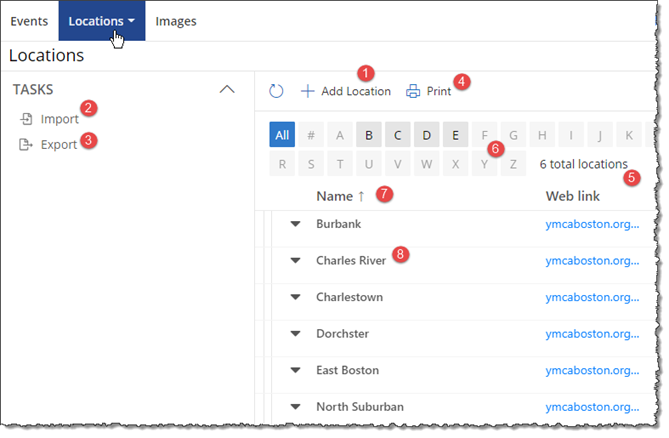
The following image shows a simple list of choices custom field called Locations, which contains six records. Each record is represented by a separate row. In this example, the records (or values) have two attributes (columns represent attributes): Name and Web link.
The table below the image describes the options.
| # | Description | Tips |

|
Add, delete, and modify records |
To add a new record:
What does it mean to enable an image icon field? What does it mean to enable a custom sort order? Tip To edit or delete an existing record, click the down arrow to the left of the name. You can also click the name ( |

|
Import records |
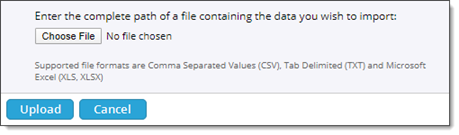
If you have existing records stored in a comma separated values (CSV), text-delimited (TXT), or Microsoft® Office Excel® (XLS, XLSX) file, you can import the records into your list.
The file you import:
To import a file:
The records in the file you imported appear in alphabetical order in your list. |

|
Export records |
You can export the records currently in your list to a comma separated values (CSV) file. You can save the exported CSV file to a Microsoft® Office Excel® (XLS, XLSX) file, as appropriate.
The exported file contains:
To export the records in the list:
The records currently in your list appear in the downloaded CSV file. |

|
You can print the records currently in your list.
Clicking Print opens a printer-friendly page that contains the records currently displaying in your list, plus a print date and time. (You may need to scroll or shrink the page resolution to display, and then print, additional records.) Tip If, in the editing environment, you assigned a color to the custom object, you might want to make sure that background printing is turned off in your browser before you print. |
|

|
Total number of records |
When you open a list, the total number of records currently contained in the list is displayed below and to the right of the letters.
See ( |

|
Find records alphabetically by name |
List records appear alphabetically by name.
To help locate a specific record, you can click the letters above the list to navigate to the section of the list that contains names that begin with the letter you clicked. |

|
Sort records by name |
List records appear alphabetically by name.
You can click the arrow to the right of the Name column to sort the list from A-Z (descending), or from Z-A (ascending). |

|
Attributes |
Each column heading represents one of the attributes that your list records (or values) share in common.
For example, this list has two attributes: Name and Web link. To modify the existing attributes, click the record name. |

 ) to edit it.