What you can learn in this topic
The Address Book in Trumba® Connect is a collection of names and email addresses.
The list of all addresses contained in the address book is a group named All Contacts. A group is any collection of contacts that serves a particular purpose. For example, a group might include the contacts to whom you send a scheduled calendar email message. Or, you might create a group of the people with whom you share a particular calendar. Groups correspond to distribution lists in Microsoft® Office Outlook® and other email programs.
While in most ways All Contacts acts like any other group, it has some unique properties.
Contacts added to these other lists and groups automatically appear in the All Contacts group.
Note The All Contacts group is a complete list of your contacts. If you delete a contact from All Contacts, you simultaneously delete it from any other groups to which it belongs. To definitively purge a contact, you must delete it from All Contacts and from each email distribution list where it appears.
In the Address Book, you can create any number of other contact groups, for example:
If the below criteria are true, the Organizers group appears by default in the Trumba Connect Address Book:
Organizers serve in the following two roles:
The Organizers group automatically includes anyone assigned as an organizer for any published event, for easy selection on future events. If you add organizers to the Address Book directly, they're available immediately for assignment to any future event that uses event registration.
You can manage the members of the Organizers group through the normal Address Book functions, but it's important to understand how the group operates:
If you delete an organizer from an event, even if that person is no longer currently associated with any event, they stay in the Organizers group, and thus remain available for assignment to other events. To remove them altogether, follow the steps in How to delete contacts from groups.
If you remove organizers from the Organizers group, they remain assigned as organizers on any events where they are already assigned. Even if you remove them from all groups, including the All Contacts group, they stay assigned to any events.
No, updating events with that organizer already assigned won't add him or her back into the Organizers group again, and that organizer remains assigned to the event.
If, however, you add that same organizer back onto an event from which he or she had been removed, or you assign them to an event to which he or she had never been assigned, they are added (or "re-added") to the Organizers group (and All Contacts, if they had been removed).
To manage your contact groups, go to the Address Book.
How do I add contacts to a new group?
Click the group actions button next to the group name and select Rename.
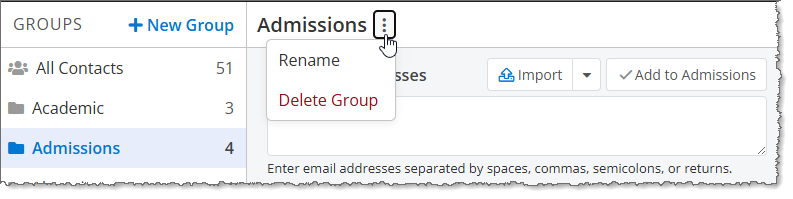
Click the group actions button next to the group name and select Delete Group.
I don't want to delete the entire group. I just want to delete some contacts in the group.
You can delete contacts from groups at any time. If a contact occurs in more than one group, you can delete the contact from each group individually. To eliminate a contact all altogether, remove the contact from the All Contacts group.
I don't want to delete the contacts altogether. I just want to move them from one group to another.
Or, to select all the email addresses, click the check box next to Name.
Tip Deleting a contact from the All Contacts group does not simultaneously delete it from every calendar distribution list. If you want to stop sending a calendar email to one or more contacts, remove those addresses from the calendar's distribution list.
You can add contacts to groups in different ways:
 preceding contacts in the All Contacts and other groups. The symbol indicates that the contact is a Trumba account holder.
In addition, if you want to import a large number of contacts, we recommend that you import them in batches of no more than a couple of hundred at a time.
Trumba Connect groups accept email addresses in standard internet (SMTP) name@domain format. If you try to add an email address in some other format, you'll get an error message.
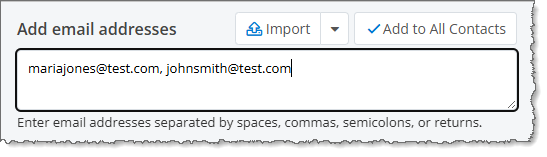
To add one or more contacts by typing or pasting email addresses
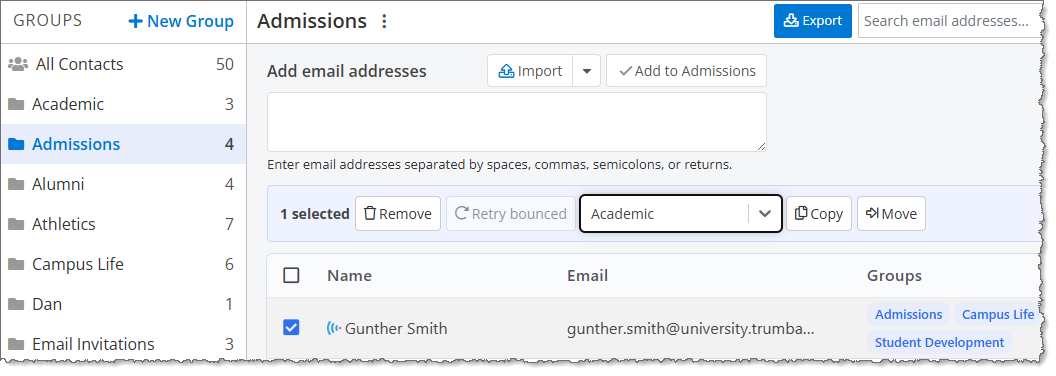
If the contacts that you want to add to one group already exist in another group, you can copy them from one group to another. Or, if you no longer want the contacts in the original group, you can move them to the new group.
Note Because All Contacts is a comprehensive list of all of your contacts, you can copy contacts from All Contacts to other groups but you can't move contacts from All Contacts to other groups.
To add one or more contacts by copying or moving them from another group
The group I want to copy or move the contacts to doesn't exist yet
Note If the group you're copying from is All Contacts, you won't see the Move option.
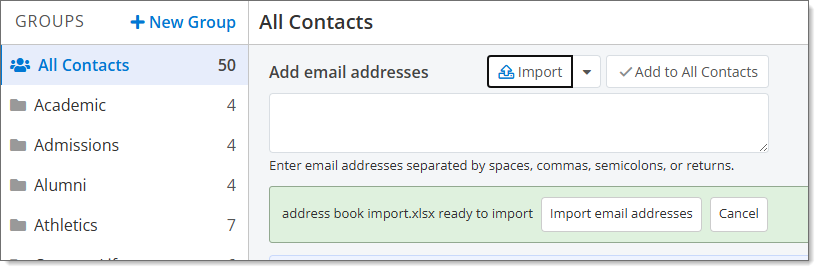
If you have a file containing contact information, you can import the contacts into a group. If you don't have a file containing contact information, you can download an import template and add the contact information to the template.
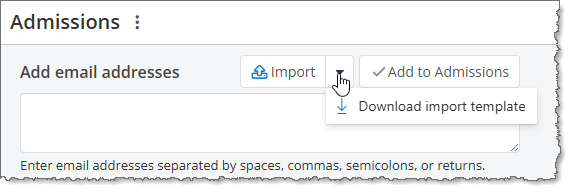
Note All Contacts is a comprehensive list of all of your contacts. When you import contacts into other groups, they will automatically be added to All Contacts as well.
To add one or more contacts by importing them from a file
Invalid email addresses appear with Bounced status. Invalid email addresses are those to which Trumba has tried to deliver email (such as for event registration and calendar digest emails), but the email was returned as undeliverable (i.e. bounced).
Note Trumba may be unable to deliver email for any one of several reasons, including: the email account was deleted, the recipient's email inbox was full, the incoming email was blocked as spam, or the recipient organization's email service was down.
After an email address has been flagged as invalid, the address appears with Bounced status, and Trumba stops attempting to deliver any email to that address.
If you believe that one or more of the email addresses was incorrectly flagged as invalid, or have since been repaired, you can clear the bounced flags. After the bounced flags are cleared, Trumba will again attempt to deliver email to those addresses.
Important To avoid having email addresses flagged as invalid again in the future, contact your organization's IT department to ensure that emails arriving from Trumba are not blocked as spam (i.e. they are added to your organization's safe list -- see An Internet Service Provider (ISP) or email client is treating Trumba messages as spam).
Invalid email addresses appear in the Address Book with a Status of Bounced (see the image below). Invalid email addresses are those to which Trumba has tried to deliver email (such as for event registration and calendar digest emails), but the email was returned as undeliverable (i.e. bounced). (For more information, see About invalid email addresses and bounced flags.)

If you believe that one or more of the email addresses was incorrectly flagged as invalid, or have since been repaired, you can clear the bounced flags for any number of selected addresses, all at once. After the bounced flags are cleared, Trumba will again attempt to deliver email to those addresses.
To clear bounced flags in the Address Book

The Bounced status is cleared. If a new attempt to deliver email to one or more of the addresses fails again, the Bounced status reappears.
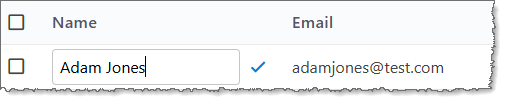
You can edit the display name for any contact with an email address that is not associated with a Trumba account. You can also add display names for contacts listed with only an email address.
Tip Trumba account holders have this symbol before their display names.
An edit box appears. The box contains the current display name, if there is one, or is blank, if no display name currently exists.