If your organization uses multiple Trumba® accounts all billed under one, you can designate one or more of them administrator accounts, from which the owners of those accounts can manage the others. For example, anyone who can sign in to an administrator account can:
Note You must already have set up your administrator account with Trumba Corporation before you can perform the tasks described in this topic. If you have not done this yet, contact your Sales or Support representative to enable your account for administrator access.
On the Administer Accounts page, you can change your organization's billing address or phone number or change the display name or email address for any account that is managed under the administrator account.
Tip If you're looking for information about changing your password, account email address, display name, or credit card information, see Change account settings.
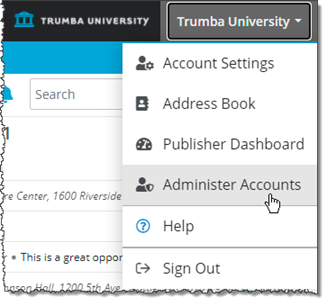
Note If you do not see this link, double-check that you are signed in to the account that you asked your Trumba representative to enable for administrator access.
Tip To help with locating an account, you can sort the list by: ID, Display name, Email address, Admin notes, or Last sign in.
If one of your Trumba calendar editors is having trouble signing in to his or her account, an administrator can use the Administer Accounts page to sign in to that person's account as that person. Then the administrator can reset the password or make other critical changes.
In Trumba Connect, when an administrator signs in to someone else's account as that person, it is called impersonating.
Caution Signing in to someone's account by impersonating him or her gives you full access to that person's account. Please use caution when impersonating another account holder and make sure to sign out properly according to the steps in the following procedure.

The person's calendar page will appear, and in the upper-right area of the page, you'll see that you are signed in as that person.


When you sign out, you're taken back to your administrator page. From there you can make other administrative changes or return to your calendar page.
Note The buttons at the bottom of the administrator page do not apply to changes you make in someone else's account while you're impersonating him or her.
If you administer a large number of accounts, you may want to export your accounts list so you can manage it in a spreadsheet or database program.
To export your accounts list:
If you're not sure how to get to the Administer Accounts page, follow the steps described here.