Trumba Support frequently receives the following questions. If you have a question that isn't answered here, try the See Also links on the left.
You use the calendar lists on the left side of the Trumba editing environment to both select the active calendar, and determine which calendars' events you want to see in the calendar view on the right.
In this example, Trumba University is the active calendar, and events on the Admissions, Alumni, and Campus Life calendars also appear in the calendar view on the right:
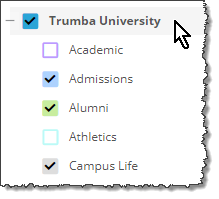
Important Neither selecting the active calendar, nor specifying which events appear in the calendar view, affect which events appear on your live, published calendars. You control events on live calendars by publishing a calendar, mixing other calendars in, or using also shows on to specify events to be included on other calendars.
For more information, go to View and edit calendars.
When you're working in the Trumba editing environment, there are several ways to organize and view your calendars and events to optimize your work.
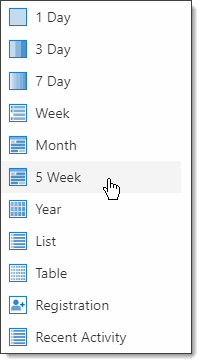
For more information, go to Manage calendar views while editing.
Yes, you can hide event registration for events on a particular calendar in Calendar settings, which may be helpful if your organization uses another system for registration and you don't want to confuse your event editors.
Only new events added to that calendar (after hiding event registration) are affected by this setting. For existing events, editors can still view and modify registration details, but can't enable registration on other events.
To hide event registration:
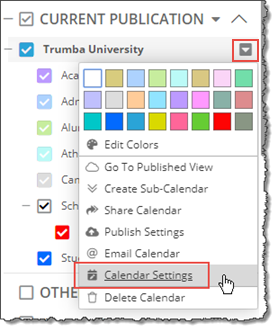
Calendar context menu

The Registration tab no longer appears for new events created on that calendar.
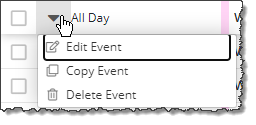
In addition, the Event Registration link no longer appears on the event context (popup) menu in the List view:
With event registration, you can send email invitations to specific people to register for the event (or both send invitations and allow open registration). See How to send invitations to register for an event.
With non-registration events (those that have neither email invitations, nor open registration), you can send event announcements to a specific list of people without having to enable event registration. See Event announcements and reminders.
Important You can either send invitations for registration events or send announcements for non-registration events, but not both. On the add/edit event form, registration events include a Registration tab, and non-registration events include an Announcements tab.
Sometimes after you type or paste an URL into the Web Link field in the add/edit event form, and then try to save the event, you see an error message, such as here:
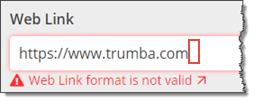
If the URL looks perfectly valid, but you're still getting the error message, the problem is almost always an extra space at the end (as highlighted in the image here).
To resolve, click in far right of the Web Link field, and then press Backspace.
The terminology around repeating vs. multi-day vs. ongoing events can be confusing. If a multi-day event takes place over the course of several days, doesn't it repeat? Isn't it ongoing?
What's important is to understand how Trumba defines, implements, and displays these three types of events, and how to set them up so that you get the results you want.
Repeating events (see Add repeating events)
Repeating patterns don't have to be regular and predictable. For example, events can repeat on different days each week, and even start and end more than once on the same day (see Set up special repeating and multi-day cases).
Ongoing events (see Add ongoing events)
The start time for ongoing events isn't what matters. For example, an art exhibit takes place in a museum that has standard opening and closing times for different days of the week. During the final exam period, students have several exams at different times.
Multi-day events (see Add multi-day events)
In this way, "multi-day events" that have an all-day duration are also "ongoing events."
Infographic illustrating the difference between repeating, ongoing, and multi-day events:

Support for UTF-8 character encoding is built into Trumba Connect. In all of the fields where you provide text, you can type non-English characters, including double-byte characters typical of many Asian languages.
This means that you have a lot of leeway in tailoring your calendar visitors' experiences to reflect the languages they speak.
Note While you can use non-English characters in text you provide, there are many Trumba Connect user interface elements that will always be in English.
I'd like to see examples of non-English languages in use and some tips on using them myself.
The answer depends upon how you intend to use the image. If you're uploading an image for use:
When you set up your calendar views, event detail views, promotion spuds, calendar emails, and RSS and Atom feeds, you can specify the size of the images in each spud. When the spuds display, your original images are resized dynamically to reflect the settings.
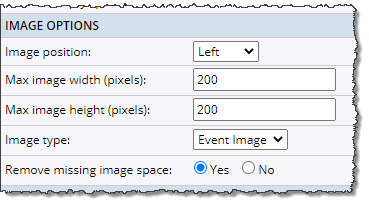
Image settings for a promotion spud.
If an image you upload for use as a button or icon is wider or taller than 55 pixels, Trumba scales the image to approximately those dimensions.
Note There is a limit to the size of images you can upload. That limit is 1 megapixel, which is equivalent to an image with a width and height of 1000x1000 pixels.
Where can I learn more about adding images to events?
I'd like more information about customizing spuds, calendar emails, and feeds.
I'd like more information about customizing registration buttons and paging buttons and other icons.
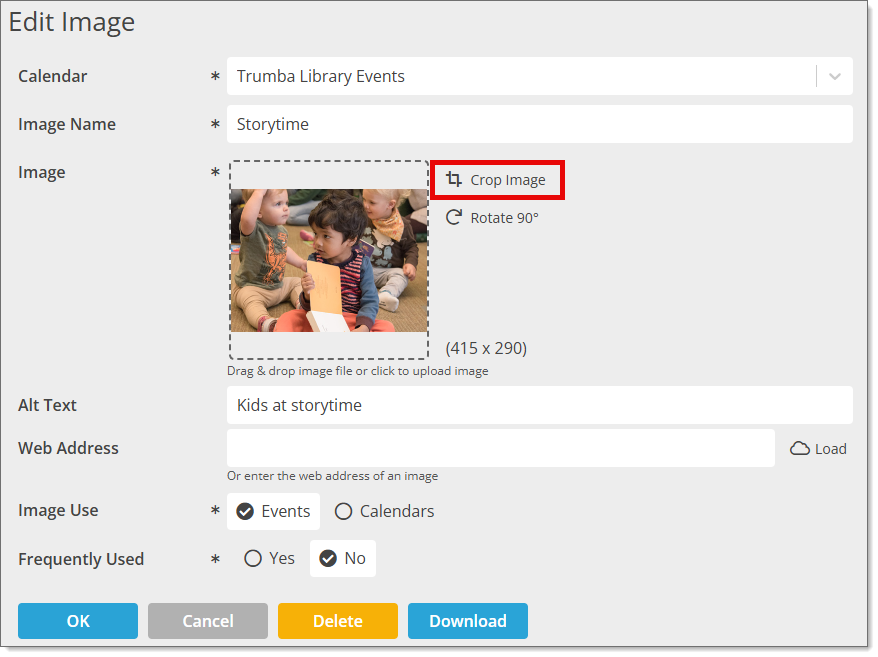
Yes. In the Edit Image window, you can:
To open the Edit Image window, open the add/edit event form, and then to the right of the Event image field, click Edit:
You can link to images you upload to your images tables. Each image is stored on the Trumba servers and has its own URL.
To find an image URL
I'd like more information about storing and managing images.
If you see changes to events and/or spuds when you preview them in Trumba, the changes will appear on your live website, although there may be a short delay. You don't need to re-embed the spud code.
If you're not seeing the changes immediately on your live website, wait a minute or so, and then refresh the page.
If refreshing your browser window doesn't display the changes, perform a hard refresh to force the browser to load the most recent version of the page.
To perform a hard refresh:
The order in which calendar views appear in the View Chooser control spud is determined by the order in which the views appear on the Calendar Spuds tab in the Publishing Control Panel.
To change the order of the views:

I'd like more information about the View Chooser spud.
Whether you've done nothing to make your website mobile friendly, fully implemented a mobile-responsive site, or created a separate site for mobile users, you can optimize your Trumba calendars for display on mobile devices.
For each calendar you publish, the Calendar Spuds tab in the Publishing Control Panel automatically includes a Mobile Table spud. The Mobile Table's calendar and event detail views are designed to reflect best practices from existing mobile-optimized Trumba calendars.
Mobile Table view is similar to the Classic Table main calendar view except that the mobile view's default settings focus on keeping the calendar width small. For example, by default, Mobile Table view shows only each event's start time, start date, and description, hides some event and calendar actions, and uses the small versions of paging buttons. Just as with other calendar views, you can customize the mobile view's default settings to meet your specific needs.
If you have a separate mobile website, you can embed the Mobile Table spud into a page on that site. Otherwise, you can set the Enable mobile calendar view option for your main calendar spud. With that option set, the device viewers are using automatically determines which view they see.
Filter spuds also automatically detect the device on which they're being viewed. Multi-select filters automatically convert to space-saving single-select versions on mobile phones and tablets.
I'd like to learn more about the Trumba mobile options and filter spuds.
You can promote your current day's or week's events in your lobby or other high-traffic location by customizing promotion spuds to create effective digital signage displays.
To provide event-driven digital signage, all you need is a computer monitor or other device that displays HTML-formatted content and a promotion spud customized to make event information visible at a reasonable distance.
I'd like to know which promotion spuds to use and how to customize them.
Tip If you have a digital signage system that does not display HTML-formatted content, you can generate a display from one of the data feeds that Trumba automatically generates for every calendar you publish. To provide a developer with the feed URL, follow the instructions described in Publish your events in a mobile app.
If you want to promote your events without setting up and embedding a full calendar, you can use a promotion spud as a calendar.
OK. I know what promotion spuds are. Just show me the high-level steps.
Promotion spuds fit easily into any webpage and can be customized to reflect the page branding and design. You can include images and date icons in promotion spuds. One spud, the Event Slider, presents your events as a scrolling slide show.
If some of your events require registration, you can include sign-up and wait-list buttons in your promotion spud events lists.
I'd like more information about event registration.
How do I add registration buttons to promotion spuds?
I'd like to know more about date icons and event sliders.
I'd like more information about how images work in promotion spuds.
Typically, visitors who click an event title in a promotion spud open an event detail view in the full calendar. But, if you're not publishing a full calendar, there is no event detail view for the links to open. In this case, you can set the event title links to open event action pages instead.
Visitors can use the event action pages to add events to their personal calendars, set up reminders, ask to be notified if the event changes, and take other actions. For more information, go to Event actions overview.
Here are the high-level steps for publishing only a promotion spud:
Even though you don't intend to embed a full calendar, you have to publish the calendar in order to create the promotion spud you do want to embed.
Tip If you aren't sure which spud to choose, click Preview beside each spud thumbnail. This gives you an idea of how a spud looks with its default settings and styles.
Tip As you change settings and modify styles, preview frequently (by clicking Preview at the bottom of the form) to see the results.
Tip If you enable popups on the promotion spud you're using as a calendar, you most likely want to hide the More Info link that appears by default in the popup and links to a full calendar. To learn how to hide that link, go to Customize popup spuds.
I'd like to know more about promotion spuds.
I'd like to know more about event actions.
Yes. You can use custom fonts by linking to a font family provided by a web-based font service, such as Adobe® Typekit, Adobe Edge Web Fonts, and Google Fonts.
To set up custom fonts for a publication, paste the font tag you copy from the font service into a custom font link field on the Trumba Edit Base Calendar Styles page, and then add the font-family name to the appropriate font fields.
For specific details, see Spud style settings.
If your organization typically offers many events each day, you may want to organize them by start time in your published calendar.
In calendar views that support grouping, such as the List view in the following example, you can:
Example: List view organized by start time:
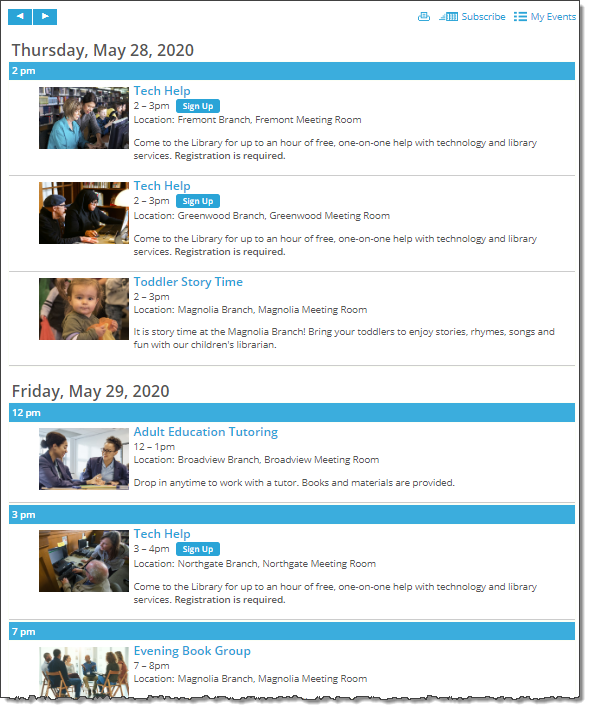
Tip To organize events by start time and control the start time format, you must be using one of the following calendar views: List, Compact List, Labeled List - Date, Labeled List - Title, Detail List - Date, Detail List - Title, Photo Events.
The following procedure assumes you already published your calendar and selected a list-type calendar view.
I need help publishing my calendar and selecting a calendar view.
To group events by start time and set the start time format
For example, if you have a lot of events per day, you might want to group by Day, and then for Subgroup by, Start time, such as in this example:.
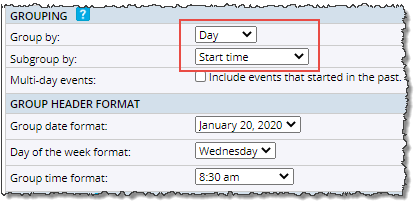
Tip When you group events by start time, ongoing and all day events have start times of 12 am. You can hide ongoing events by clearing Include events that started in the past in the Grouping section of the settings form.
Typically, you'll choose formats that match the date and time formats you use in your events.
For more about paging and grouping events in calendar views, see Mix-ins, paging, and grouping.
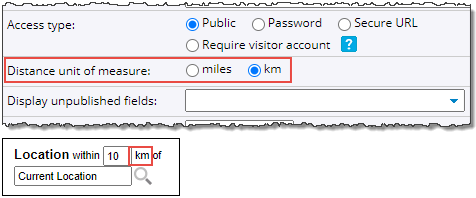
To set the unit of measure (miles versus kilometers):
In this example, km is selected. The second image shows the Location Search spud, reflecting the km selection.
If you used the Description field to add a description to your events, and you set up the Classic Table calendar view to display the inline description, your published calendar view will look something like this:
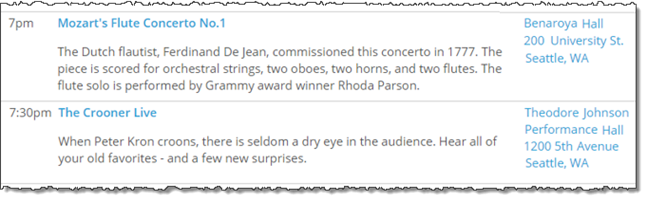
Inline description in published Classic Table calendar view.
I'd like to know more about event fields and calendar views.
Read on for a solution if you:
I don't see the inline description in the published calendar
I see the event description twice for each event
If you see the description under the event title and in its own column for each event (as in the following example), it means that you both:
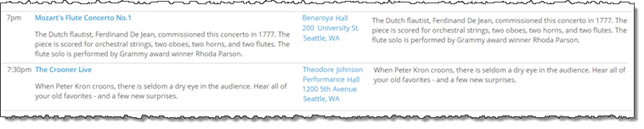
To solve this issue, remove the Description field from the field list:
The Description field disappears from the field list.
The first thing to do is confirm that you have the people's email addresses entered correctly in your distribution list(s).
If the email addresses are correct, it's likely that the recipients' Internet Service Provider (ISP) is treating Trumba email messages as spam.
You can provide recipients with information about how to get Trumba added to their ISP's safe lists.
An email address with two red exclamation points is an address to which Trumba has tried to deliver email (such as for event registration and calendar digest emails), but the email was returned as undeliverable (i.e. bounced).
This could mean the address is invalid or that email from Trumba is being treated as spam.
How do I remove invalid addresses from my distribution lists?.
Can I increase the likelihood that my calendar and event emails will not be treated as spam?
If you believe that one or more of the email addresses was incorrectly flagged as invalid, or have since been repaired, you can clear the bounced flags for any number of selected addresses, all at once. See How to clear bounced flags in the Address Book.
A red x beside an email address indicates that the email address owner opted out of receiving email messages sent from the current calendar or from Trumba in general.
How do I remove addresses from my calendar distribution list?
If you offer events that span midnight, you have to set your calendar's day display times to reflect that span. Otherwise, events that span midnight will show up in calendar emails both on the day they start and on the day they end.
To set your calendar's day display times
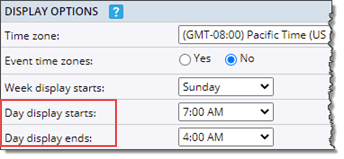
After you change the day display settings, send yourself a one-time calendar email to confirm that events that span midnight appear in the emails only on the day they start.
Where can I learn more about modifying my calendar email settings?
By default, a calendar's RSS, Atom (XML), iCalendar (ICS), Comma Separated Value (CSV), and JSON feeds show six months of event information starting from the current day. With these defaults, if your future events are more than six months away, they won't show up in the feeds.
You can change the default setting by changing the start and end dates for events that you want your feeds to include. See this example from the RSS feed settings:
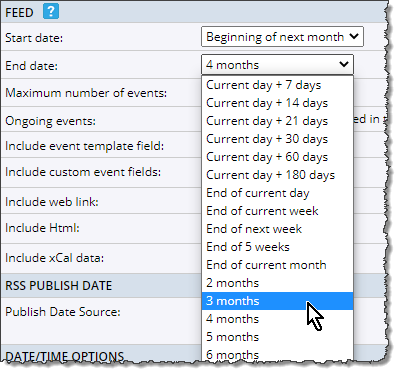
Changing the default start and end dates for events in a feed.
To change feed settings, in the Publishing Control Panel, click the Feeds tab. For the feed type you want to customize, click Edit Settings & Styles.
I'd like more details about customizing feed settings.
You can encourage a targeted audience to register for and/or attend an event by providing a direct link to the event's Event Actions page.
For any existing event on a published calendar, to find the direct link to the event's Event Actions page:

Tip:
Be sure to test the event actions link. The URL is based on the current publication selected in the editing environment. That publication's settings determine the appearance of and the fields and actions included in the event actions page.
If the page doesn't look the way you expect, you probably need to switch the current publication.
To switch the current publication:
For more information, go to Link directly to event and calendar action pages.
You can provide access to an event detail page by sharing the URL for the page directly with your target audience.
This URL is a permanent link (or "permalink") to the page, bypassing the main calendar. You can copy or bookmark the URL, and then share it as appropriate.
There are two other methods for providing links to event detail pages:
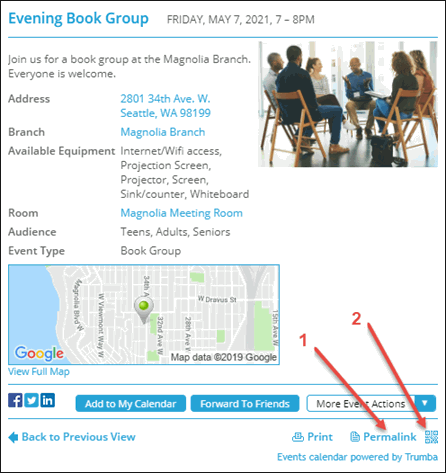
When you click Permalink, the event detail URL appears in a popup window.
The link you paste into a webpage will look something like this:
<a href="https://www.trumba.com/t.aspx?e=CgDl72T8OP0ZqWNOrFy2ObFgIYpNKEVvFgZTayDSmyJU5x*upQQH5-bEEsPrOz106WAna8oGhsGjOM57JIhvbegV7pZWs8TMggAelZzcNA0fXDeGTTdiIEYthXccdbZSyAE!X&trumbaEmbed=view%3Devent%26eventid%3D132545993">Don't miss this event!</a>
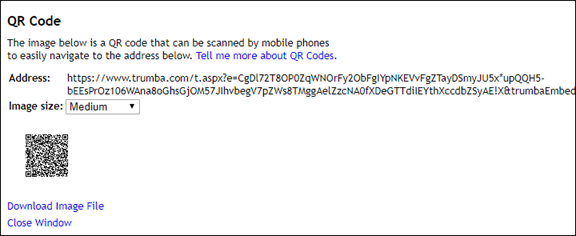
Clicking the icon opens the QR Code window where you can copy a link to the event detail view (Address) and/or download a QR code image file.
Tip Event detail links remain valid until you delete the event from or unpublish your calendar.
Can I create my own URLs to filtered views, search results, and more?
You can set up a promotion spud so clicks on event titles open the event action/registration page rather than the event detail view associated with the main calendar. If you decide to use a promotion spud instead of a full calendar to promote events, this is a step you want to take.
To set promotion spud event title links to open event actions pages
Note The following instructions assume that you've already published a calendar and added the promotion spud you want to embed in your website. If you need more detailed steps, see I have too few events for a full calendar but I still want to promote them. What can I do?
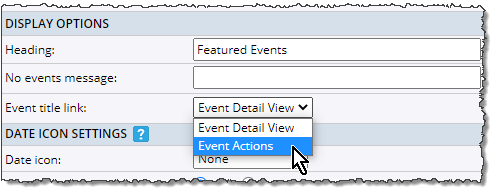
Event description link option
Tip If you enable popups on the promotion spud you're using as a calendar, you most likely want to hide the More Info link that appears by default in the popup and links to a full calendar. Learn how to hide that link here.
Notes get truncated because of a limit that Google™ places on the overall size of URLs used to add events to calendars. A URLs size is determined by all of its parts, including the domain, page, field names, field content, and more. If a particular URL exceeds the size limit, the Description field content is what gets truncated.
Testing has shown that, if you keep the combined size of an event's fields to about 500 characters, all of the content you add in Trumba should show up in the Google Calendar event.
Tip If an added event includes custom fields, in Google Calendar this custom information is added at the top of the Description field. This means that Trumba Description field content will be truncated before custom field content.
| Action | Publisher | Editor |
| Add, edit, and delete events | Yes | Yes |
| Mark events as private |
Yes
Publishers can mark events as private only on calendars they own. Learn more. |
No |
| Approve submitted events | Yes | Yes |
| Set up event registration and manage attendees | Yes | Yes |
| Send event emails | Yes | Yes |
| Manage address book emails and groups | Yes | Yes |
| Create calendars | Yes |
No
By default, editors cannot create calendars in their accounts. Learn more. |
| Share calendars | Yes | No |
| Publish calendars | Yes | No |
| Customize published calendar settings, calendar views, and control and promotion spuds | Yes | No |
| Define custom fields, event templates, and custom objects |
Yes
Note Publishers can share fields, templates, and objects for use by Editors. |
No
Tip Editors with "Add, delete, and change content" permission for a folder can edit custom object records. |
| Create custom registration forms |
Yes
Note Publishers can share custom forms for use by Editors. |
No |
| Set up and customize calendar emails | Yes | No |
| Customize event emails | Yes | No |
| Monitor calendar activity in the Publisher Dashboard | Yes | No |
| View and manage account, billing, and performance data |
Yes
Only Publisher accounts with Primary and/or Administrator status |
No |