skip navigation
Trumba Web Calendar Software
Trumba Help Center What’s New | FAQ | Support Forum | Email Support

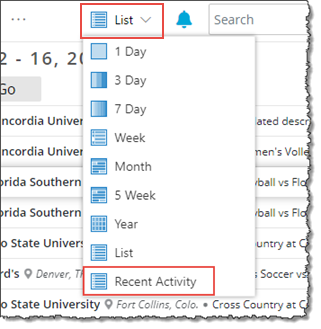
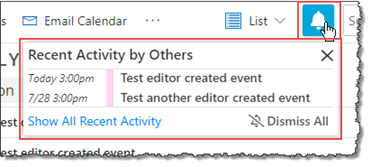
Recent Activity panel

In this topic you'll learn:

How changes made by other Trumba account holders appear in your calendars

Trumba® Connect keeps track of changes that other Trumba account holders make to calendars that:

  • Are shared with you.
  • You share with editing permission.
  • You subscribe to.
  • Are emailed to you.

These changes can appear:

Updates in the Recent Activity panel appear in the color that corresponds to the calendar color in the calendar list. If an existing event was edited, the part of the event that has changed is highlighted. The pictures below shows Josie's calendar list, which includes the class schedule for Green City Cycles, where she will start teaching their new indoor cycling class. The shop owner, who shares the calendar with her, changed the schedule, and those changes appear in the updates under Josie's calendar list. The dashed underlines indicate the parts of the existing events that have changed.


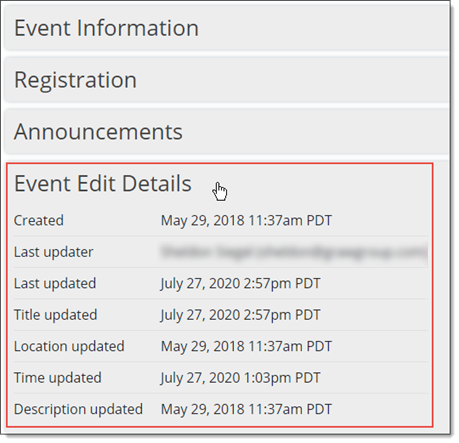
If you mix in or display a calendar that is shared or you subscribe to, you can change calendar views to display or hide new and updated markers on events in the calendar. Where an indicator appears, you can hover the mouse over it to see when the event was updated.

Display, hide, and dismiss updates in the Recent Activity panel

The 10 most recent updates appear in the Recent Activity panel. In addition, by default, updates only from active calendars—calendars that are displayed or mixed into your current view—appear in the panel. However, you can choose to view updates from all calendars in the calendar list.

  • To specify whether to view updates from all calendars or from mixed-in calendars only, click Account Settings. On the Account Settings page, for Show events from, select All calendars to see updates from all calendars, or select Calendars you're viewing to view updates only from calendars that are mixed into the current view.
  • To see whether you have more than 10 updates, click the More link to see all updates.
  • To clear the first 10 updates from the Recent Activity panel, click the Dismiss link. If you have more than 10 updates, the next 10 updates then appear in the panel.
  • To clear all updates, click More, and then click the Dismiss All button at the bottom of the Recent Activity page.
  • To keep the updates in the panel, but hide them from view, click the Hide updates button () in the upper-right corner of the panel.

Display or hide new and updated markers on events in calendars

When you display or mix in calendars that are owned by other Trumba account holders, new and updated markers can appear on events.

  • To hide the markers, display the calendar in Multi-Week or Month view.
  • To see the markers, display the calendar in Week, 3 Day, Day, or List view.
Privacy | Terms | Public Calendars