skip navigation
Trumba Web Calendar Software
Trumba Help Center What’s New | FAQ | Support Forum | Email Support

Using shared calendars

If you have a publisher or editor account, another account holder may share a calendar with you so you can view, edit, or otherwise manage its events. In this topic, you learn:

I'm a calendar owner looking for advice about what sharing permission levels to assign.

The "No calendars have been shared with you" message

If you sign in to your editor account and you see the "No calendars have been shared with you" message, it means that:

  • Your organization has the kind of administrative setup where editors cannot create calendars, and;
  • The publisher/calendar creator hasn't gotten around to sharing any calendars with you yet.

No calendars have been shared message

No calendars have been shared with you message

You can wait a day or so and try signing in again. Or, you can contact the publisher and remind them that you can't start working with calendars until they are shared with you and available in your account.

How to identify shared calendars

When you're signed in to your Trumba account, you see shared calendars, along with other calendars (if you have any), in the calendar list on the left side of the editing environment.

Tip When you pause your cursor over a shared calendar, a tool tip shows who shared the calendar with you and your permission level.

Shared calendar tooltip

What you can do with a shared calendar

What you can do with a shared calendar depends upon:

  • Whether you have a publisher or editor account.
  • What permission level the calendar owner gave you.

The two images show the publisher and editor permission levels. Following the images, descriptions provide more detail about exactly what each permission level means.

Publisher permission levels
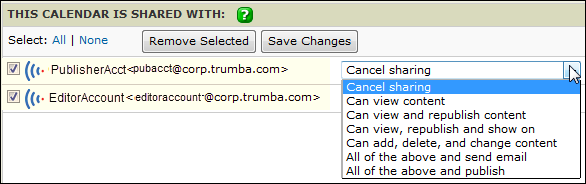
Publisher account permission levels

Editor permission levels
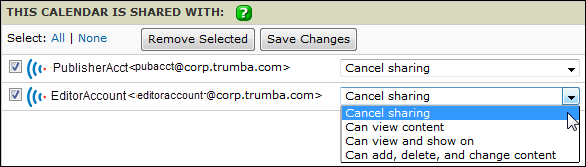
Editor account permission levels

Click a permission level to learn more.

Tip In some organizations, editors, regardless of their permission levels, will not be able to create new calendars in their accounts.

View permission

If the calendar owner gave you Can view content permission:

  • You can select the check box next to the shared calendar to mix its events into the currently displayed calendar.

    Learn more about mixing in calendars in the editing environment.

  • You can click the shared calendar's title to make it the active calendar. You see all of the events on the calendar but you can't add any new events.
  • If you click the title of a shared-calendar event to open the Event form, you can see but not change the event's name, location, time, and owning calendar. You can also show the event on other calendars in the Also Shows On list.
  • You cannot change the shared calendar's settings, such as the calendar name or time zone.
  • You cannot publish the calendar or send its events through email. Nor can you mix the shared calendar into other calendars you publish or send through email.

View and republish permission (publisher account only)

If the calendar owner gave you Can view and republish content permission, everything described under View permission applies, plus:

  • You can mix the shared calendar into calendars you publish or send through email.

Learn more: Mix-ins, paging, and grouping; Send events by email

View (republish) and show on permission

If the calendar owner gave you Can view (republish) and show on permission and you're:

In addition, assuming the shared calendar is called Calendar A, you can

  • Also show on Calendar A any events that you add to other calendars you can edit.

    Also showing an event on another calendar

    For example, suppose you're the editor of the Chemistry department calendar. The Biology department calendar has been shared with you with Can view and show on permission. When you add events, such as a Chemistry of bioluminescence lecture, to the Chemistry calendar, you can also show those events on the Biology calendar.

Tip It's a good idea to coordinate closely with a shared calendar's editor and/or owner. When you also show events on a shared calendar, if that calendar is published, the events go live immediately.

Learn more: Also Shows On vs. Mixing In; Recent Activity panel; Add events

Add, delete, and change content permission

If you've been given Can add, delete, and change content permission, when you click the calendar title, it becomes the active calendar. A limited set of buttons appears above it:

In addition:

  • You can add and delete content, and you have full editing access to existing content. The calendar owner automatically sees the event changes you make.
  • You can also show events on the shared calendar that you create on other calendars.
  • You can mix the shared calendar into calendars you publish or send through email.
  • You cannot change the shared calendar's settings, such as the calendar name or time zone.
  • You cannot share the calendar with other account holders, nor can you publish the calendar or send its events through email.

Learn more: Recent Activity panel; Mix other calendars into your published calendar; Send events by email

All of the above and email permission (publisher only)

If you've been given All of the above and send email permission, when you click the calendar title, it becomes the active calendar. A limited set of buttons appears above it:

In addition:

  • You can add and delete events, and you have full editing access to existing events. The calendar owner automatically sees the event changes you make.
  • You can also show events on the shared calendar that you create on other calendars.
  • You can mix the shared calendar into calendars you publish or send through email.
  • You can set up one-time and scheduled calendar email for the shared calendar (but you can't mix in any other calendars). If the person sharing the calendar with you already has established scheduled email for the calendar, that schedule appears when you click Email. You can make changes to the schedule or distribution list.

    Note Each calendar has only one email schedule. If you change the schedule or distribution list for the calendar email, those changes also apply to the calendar owner who originally set up the email.

  • You cannot change the shared calendar's settings, such as the calendar name or time zone.
  • You cannot share the calendar with other account holders, nor can you publish the calendar.

Learn more: Recent Activity panel; Mix other calendars into your published calendar; Send events by email

All of the above and publish permission (publisher only)

If you've been given All of the above and publish permission, when you click the calendar title, it becomes the active calendar. A limited set of buttons appears above it:

Everything described under All of the above and email permission applies, plus:

  • You can publish the calendar. If the person sharing the calendar with you already published the calendar, you'll see the publish settings they chose when you click Publish. You can change the settings and unpublish the calendar.

    Note Each calendar has only one set of publish settings. If you change the settings or unpublish the calendar, these changes also apply to the account holder who originally published the calendar.

Learn more: Publish calendars

Privacy | Terms | Public Calendars