If you have event information or calendars in other programs that you want to migrate to Trumba® Connect, you can import the information.
Trumba supports file imports in the following formats:
You can also import events in these formats from a web URL.
(To import events from Facebook, see Import Facebook Events.)
Tips
For example, if the file contains 2000 events, you might divide it in half or in quarters and try importing 1000 or 500 events at a time.
Adjust the end dates for the events in your Excel import spreadsheet. For an all-day event that ranges from November 12, 2022 to November 15, 2022, for example, enter the Start Date as "11/12/2022" and the End Date as "11/16/2022." The event will import with an End Date of 11/15/2022, ending at midnight.
Alternatively, if your Excel import file contains only all day and multi-day events: for an all-day event, for example, that ranges from November 12, 2022 to November 15, 2022, enter the Start Date as "11/12/2022" and the End Date as "11/15/2022"; ensure that the Start Time and End Time are entered as "0:00"; and then when you import the Excel file and the mapping screen appears during the import process, select None for End Time. In this example, the event will import with an End Date of "11/15/2022," ending at midnight.
(If you're importing events other than all-day events, don't use the above alternative. With None selected for End Time during the import process, all events other than all-day events import with a Start Time only and no End Time.)
Almost all calendaring programs support exporting event data. The export result can be either a file or a web URL. The Trumba import feature works with both files and URLs.
Typically, in files you export, character escaping is handled properly so commas, line breaks, and other characters will appear as intended in your Trumba events.
To confirm that character escaping is handled properly in a .csv file you exported or if you're preparing your own .csv file from scratch, see the section about escaping characters that cause import problems.
Tip Before you export, it's a good idea to consult your calendaring program's Help. For example, you can find export help for a Google calendar here.
Tip If you're importing an iCalendar(.ics) file, see Prepare iCal files for import.
If you're importing a comma separated values (.csv) file, take a look at the following tips to ensure that characters that cause import problems are properly escaped.
Note The escape character for .csv files is the double quotes (") character.
The image shows the escape character (") used in a small (two event) .csv file with a limited number of fields. Following the image, a table describes when and how the escape character is used.
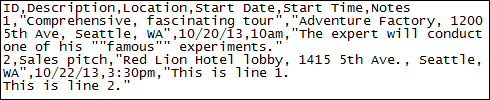
Comma separated values (.csv) file with escaped characters
| To see this after import | Do this in the .csv file | Rationale |
| Comprehensive, fascinating tour. | "Comprehensive, fascinating tour." |
|
| The expert will conduct one of his "famous" experiments. | "The expert will conduct one of his ""famous"" experiments." |
|
| This is line 1. This is line 2. |
"This is line 1. This is line 2." |
|
Tip You can't escape commas in custom field names. For example, you can't escape the commas in a field name such as Museum, Gallery, or Garden. If you try to import a file that includes field name commas, the import will fail. To make the import work, remove the field name commas or replace them with semicolons. In Trumba, you can add field name commas back in.
Before you try importing events:
Tip The file may also include columns for end date, end time, duration, location, notes, calendar, and any custom event fields.
Tip Unless you're importing a very small number of events, it's best to create a new calendar that you can use for an import test. It's a lot easier and quicker to delete calendars than it is to delete a large number of individual events. If importing into a new calendar is successful, you can bulk move the events to (or import again into) a different calendar. If you see problems with the imported events, you can delete the new calendar, troubleshoot the file, and then start again.
If you want Trumba to automatically create a new calendar or sub-calendar into which the events will be imported, select either A new top-level calendar or A new sub-calendar under. If you're importing into a new sub-calendar, select the sub-calendar's parent from the drop-down list.
Tip If you want to automatically create multiple calendars into which the events are imported, see To create multiple calendars all at once.
For example, if the default import time zone is Pacific Time and the existing calendar's time zone is Eastern Time, events with 8 am start times in the file will have 11 am start times in Trumba.
To simultaneously import and change the time zone for the imported events, select the time zone you want from the drop-down list.
If you're importing a .csv, .txt, .xls, or .xlsx file, under What information does each column contain?, the labels on the left are the fields that your file contains, and the drop-down lists are the available Trumba fields you can map them to.
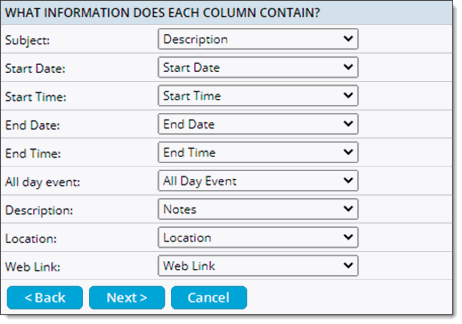
Mapping an imported file's fields with Trumba fields
Review the fields that are mapped to make sure they're correct.
Some fields may not have a corresponding Trumba field, and you can set these fields to None (or leave them set to Don't Know). Information in these fields is not imported.
Note Currently, Trumba does not have a field to which you can map event reminders. If the Reminder On/Off or similar field is included in the file you import, select None for the Trumba field.
For more details about field mapping, see Map fields when importing.