
I'm looking for help about using custom icons and buttons.
In Trumba® Connect, you have a granular level of control over the fonts and colors that appear in your published calendar views and other spuds.
In each publication's Publishing Control Panel, you can set base styles that apply across spuds, or override any base setting on an individual basis.
If I set up one publication the way I want, can I copy its settings to other publications?
Note For information about setting up custom fonts, go to Custom font links.
Setting base styles serves as a style foundation for all of your spuds. You can always modify settings on a spud-by-spud basis, but starting from a common foundation can ensure consistency (where you want it), and save a lot of time.
Styles you can set on a base level include:
Definitions:
If you haven't already published your calendar, on the Publish page, click OK.

The Edit Settings for Base Calendar Styles page appears.
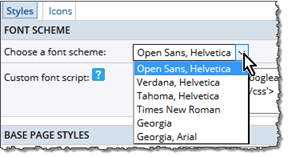
Does the Custom font link field mean I can use a custom font?
Tip If you change the font scheme after you already customized styles for individual calendar views and other spuds, the base changes overwrite the spud customizations.
Is there a quick way to import my organization's color palette?
Tell me more about rounded corners on control and promotion spuds.
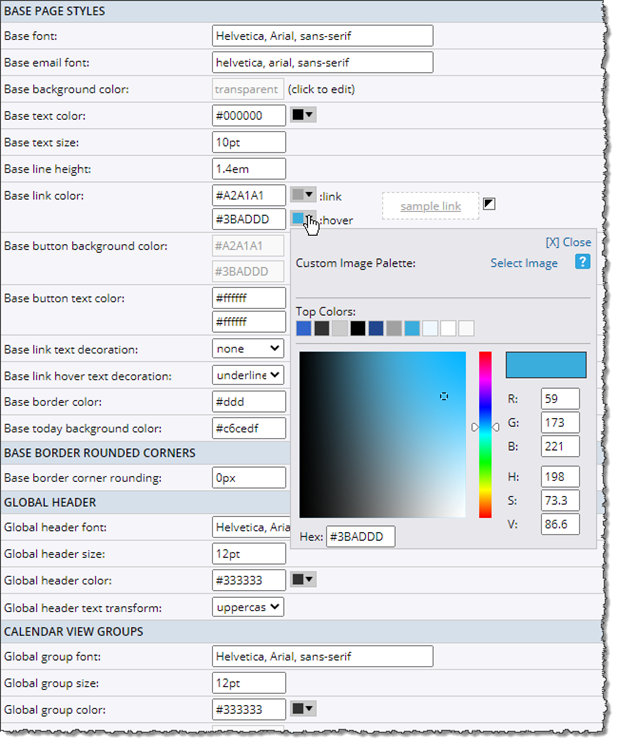
You use the Color Picker to set the color for several settings on the Edit Settings for Base Calendar Styles page.
Tip To save time, use the Color Picker to set colors at the base level before you apply them to individual spuds.
When you first open the Color Picker, you see a color palette under Top Colors. This palette comes from the color scheme that is selected at the top of the Edit Settings for Base Calendar Styles page.
Where do I find the Edit Settings for Base Calendar Styles page?
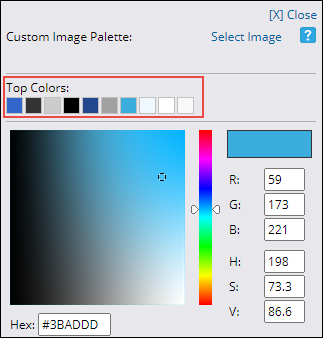
Color Picker with default color scheme outlined in red.
You can select a color for an individual style setting (for example, the base text color), by typing the color's hexadecimal (1), RGB (2), or HSV (3) value. You can even type a color name in the Hex field (1). Or, you can use the color slider and thumbnail to select a color visually (4).
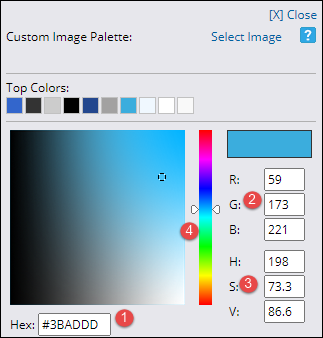
If you use the same color a few times, the color is added to the Top Colors list, where you can apply it by clicking the color square. The list can include up to 16 colors.
Tip Double-click a color square to apply the color and close the Color Picker.
Most likely, your organization has its own color palette that you use to brand your website and other publications. If you have a logo or other image that includes some or all of your palette's colors, you can use that image to add your custom color palette to the Color Picker.
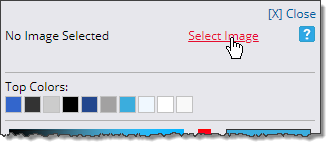
To bring an image's colors into the Color Picker as a custom palette, click Select Image.
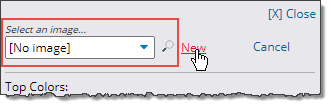
You can then select an existing image from the drop-down menu, click the magnifying glass icon to search the existing images, or click New to load a new image.
After you've selected an image, the image colors appear in the Color Picker under Custom Image Palette. Your custom palette can include up to 16 colors.
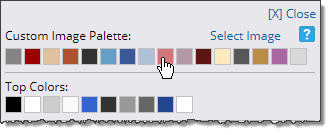
To apply a color to a setting, click the color square, or double-click the color square to close the Color Picker.
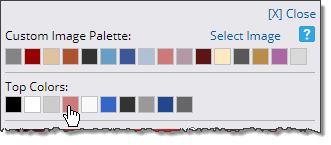
If you apply custom colors to base settings, and then save the Edit Settings for Base Calendar Styles page, the selected colors from the custom palette may replace the default colors under Top Colors.
If you set styles at the base level, calendar views and other spuds inherit most of the base style settings. This saves you a lot of time as you only have to touch a few individual spud settings when you want to override the base values.
Base style settings are inherited by the following:
Tip Base style settings DO NOT affect event colors. By default, event colors originate with the calendar color choices you make in the editing environment. You can change the default event colors if you want.
The following image shows a section from the Edit Settings & Styles page for a Classic Table calendar view. Inherited settings show grayed out text in the text boxes as well as a "same as Base [setting]" note.
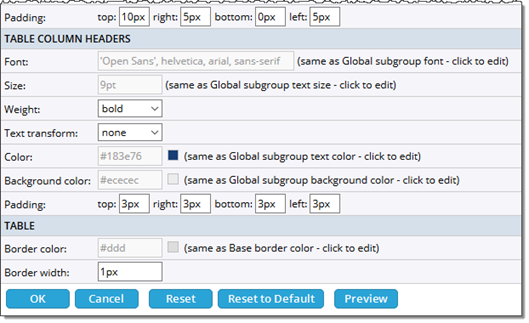
You know a setting is inherited when its text is grayed out and it is annotated with a note.
When you're editing an individual spud's styles, you can override any inherited setting by clicking the setting's text box or color square.
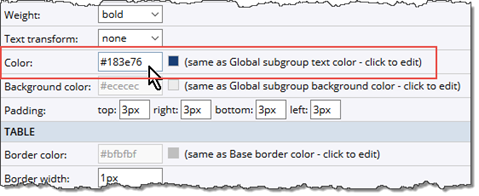
To override an inherited setting, click in a text box or click the color square.
The text becomes editable and the Color Picker icon active.

To revert to the base setting, click the inheritance button ( ) to the right of the Color Picker icon.
Tip If you customize individual spud font and color settings and then, at the base level, change the overall font scheme, the spud settings are overridden. However, you can change other base settings without overriding the individual spud settings. More about base settings.
After you set a publication's base styles, you can customize styles for each of the publication's spuds on an individual basis.
Tip If you haven't already set base styles, do that now.
For example, to customize a:
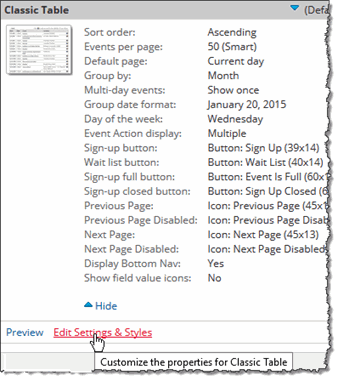
Tip It's a good idea to review information on style inheritance before you begin customizing.
