
You publish a Trumba® calendar to the web when you want to make it available to the public. You then embed the published calendar spuds into your own website, giving site visitors access to your active Trumba calendar, right on your site. Tell me more about calendar views and spuds.
Visitors to your calendar can subscribe to it or take other actions on events.
After you publish the calendar, the spud code is also rendered on a calendar hosted on a Trumba server (known as the Trumba hosted view), and given a unique web address (URL). The Trumba hosted view is used primarily as a preview and test tool. See Preview your calendar with the hosted view.
Note If you've already worked with your Trumba Sales representative to get an event submission form, you may also be able to use it with the Trumba hosted view. For more information, go to Get an event submission form.
To publish your calendar and put it into your website, you complete two separate steps.
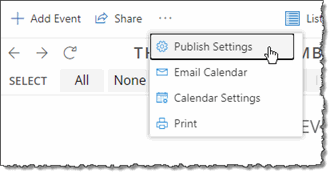
| 1 | When you're done entering events, go to the calendar you want to publish, click Publish Settings, select a default view, select the calendars you want to mix in, and specify other publishing settings. |
 Each publishing setting has a description of what it's for,
along with additional help and tips that you can open by clicking the blue Help buttons ( Each publishing setting has a description of what it's for,
along with additional help and tips that you can open by clicking the blue Help buttons ( ). ). |
|
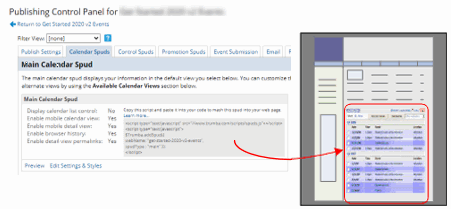
| 2 | Paste code that Trumba Connect generates for calendar spuds into your own web pages. Visitors get the benefits of a Trumba Connect active calendar without leaving your site. |
 |
Views and spuds are terms you'll see referred to a lot in the context of publishing Trumba calendars.
When you publish your calendar, you select a default view. The view sets the calendar layout and other attributes that determine how events are presented on the main calendar. For example, for some views, you can change the number of events that appear on a page and how they're grouped within that page. You can also allow visitors to select multiple events to take action on, or disable update markers that appear when you make changes to your events. Each view has its own customization settings.
Examples of views: Classic Month and Classic Table views.
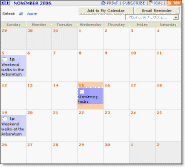
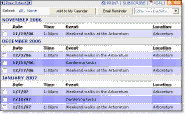
After you publish your calendar, Trumba Connect makes your calendar available in a few standard views in addition to your default view. You can add, remove, and customize views in the Publishing Control Panel.
For every calendar you publish, Trumba Connect creates calendar spuds, each of which presents your calendar data in a different way. Spuds behave like portals on your web pages, which draw calendar information directly from the Trumba server on which your calendar is hosted. Because they draw information from Trumba Connect, spuds on your site immediately show updates you make to your calendar in Trumba Connect.
Some examples of spuds are:
In the Publishing Control Panel that appears after you publish your calendar, you can see the spuds that are available in each spud category on the various tabs. Tell me more about the spud categories.
After you've published a calendar, the spud code is also rendered on a calendar hosted on a Trumba server (known as the Trumba hosted view), and given a unique web address (URL).
While this URL is available to anyone who has access to the web, it appears under the Trumba.com domain, such as in the following example, so it's primarily a preview and test tool, designed for internal use only:
If you're not ready to embed the published calendar spuds into your own website, you can use the Trumba hosted view to preview and test your published calendar.
For example, you can test event and calendar actions by setting reminders, adding events to your personal calendars, subscribing to the calendar, and more. You can test control spuds you have implemented by searching for events, switching between views, hiding and displaying mixed-in calendars, and more.
You can modify your hosted view display settings (go to Publish Settings, the Hosted View tab, Hosted View section, and then click Edit Settings & Styles), by:
Note With Allow public access to hosted view set to No, users must be signed in as an editor or publisher under the calendar owner's account to access the hosted view. Otherwise, users are redirected to the Trumba sign-in page.
Note The hosted view is primarily a preview and test tool, for internal use only, but keep in mind that if you've enabled search for your published calendar it's possible to also enable search on the hosted view in publish settings, in which case it also appears in search result lists.
The hosted view displays a selection of control spuds to the left of the calendar.
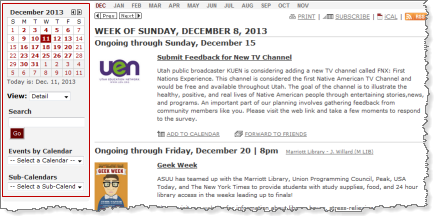
Hosted view with spuds to the left of the calendar.
By default, in narrow browser windows (less than 735 pixels wide) and on mobile devices, the hosted view is set to automatically hide the control spuds. To display the spuds in narrower environments, you can click Show Controls above the calendar.
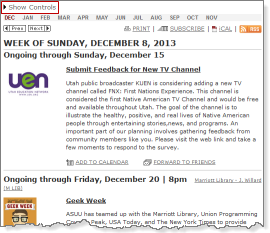
Hosted view with spuds hidden.
Tip If you enabled the mobile calendar view, when you preview the hosted view on a mobile device, you see a mobile table view specifically configured for the narrower mobile environment. Learn more.
To preview a published calendar's hosted view and find the view's URL
If you want to provide a link to the hosted page, copy and paste the URL portion from the text string under Copy this HTML....
Replace View My Calendar with whatever text you prefer.
To view the hosted page at any time, put the following URL into a browser's address bar:
Replace webname with the web name of your calendar.
If you want to brand the hosted page with a photo or logo, you can add an image. Provide a URL to link the image to a webpage.
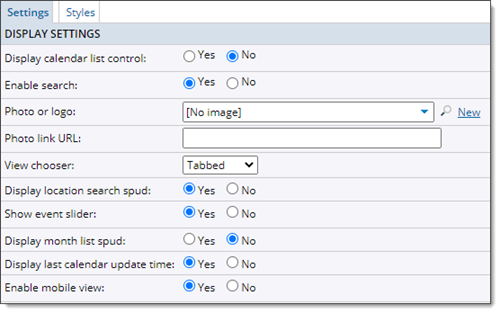
Hosted view customization settings, Settings tab.
On the Styles tab, set the colors and font sizes you prefer.
At the bottom of the form, click Preview to preview your customization choices. When you're satisfied, click OK.
After you place calendar spuds into your site using the default settings, you might see that the design of the calendar doesn't exactly match the design of your site. In that case, you can take advantage of the flexibility Trumba Connect provides in customizing the views you provide for your main calendar, as well as styles and other settings for any of the spuds you want to use.
In the Edit Publish Settings page, you select a default calendar view, the calendar name, mix-ins, and other settings that apply to the main calendar behavior. You can change these settings any time.
If you haven't published the calendar, the Publish <your calendar name> page appears. You can specify the publishing settings here, and then publish the calendar. (See: Simple steps to publish your calendar into your website.)
The topics listed here provide more information for selecing settings on the Edit Publish Settings page (or Publish <your calendar name> page if you haven't yet published the calendar).
Default view
Publishing settings
Mix-in events
Search
Event filters
Email settings
If your published calendar is no longer relevant, or you change your mind about making it available on the web, you can unpublish it to remove it from the Web and remove it from your website.
Note If you unpublish a calendar but do not remove spud code from your own web pages, the spud code will display a Calendar not available error message on your pages.
If your calendar was indexed by a search engine while it was published, even though the calendar no longer exists on the web, its name, description, URL, and other searchable event information may still be listed in relevant search results until the search engine re-indexes the Trumba Connect public calendar site. For more information, go to Control access to published calendars.
