Trumba Web Calendar Software
Google 
Trumba Help Center What’s New | FAQ | Support Forum | Email Support

Store images with publications and add them to events

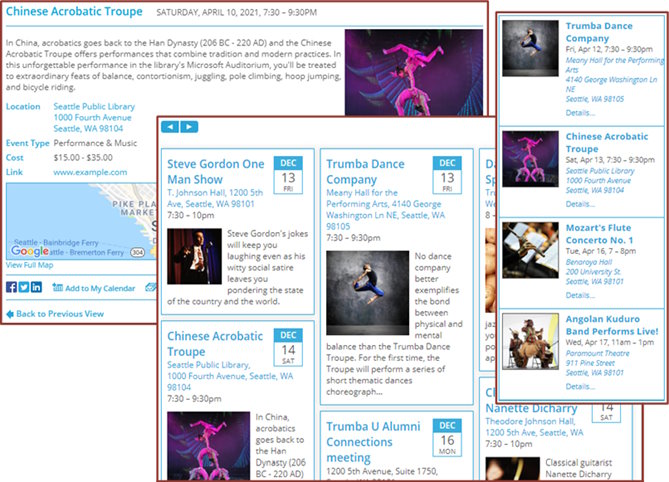
With some calendar views, you can display images (event image) on individual events. Images can appear in the main calendar view and the event detail view (detail image), and you can use the same image (event image) for both views, use a different image for each, or use an image in only one or the other view.

For example, the picture below shows a performing-arts calendar that includes the musicians' publicity photos on events in the main calendar view, using the event image.

Add images to events

When you add an image to an event, you can point to an image that's hosted on another website, or you can upload the image file from your computer. If you upload the file, it is stored on a hosted location on the Trumba Connect account.

You can also decide whether to make the image available to other events in your publication by tagging it to be a frequently used image so it is easier to locate.

Images you add to events are also automatically available for publication in an Upcoming Photo promotion spud that you can add to any page on your website to promote events.

Upcoming Photo promotion spud from a demonstration website

How do I publish promotion spuds?


<<<<<<< imagetable.aspx Tip The following procedure explains how to use a custom field with a event template and calendar view to add an image that appears with an event in the main calendar view. You can also specify images that appear with events in the event-detail view, regardless of the main calendar template you use. To do this, you create your own event template to include two predefined custom fields called Event imageand Detail image.

Add an event image and detail image

======= Tip The following procedure explains how to use an existing event template and calendar view to add an image that appears with an event in the main calendar view. You can also specify images that appear with events in the event-detail view, regardless of the main calendar template you use. To do this, you can also include a pre-defined field called Detail image in your event template.

To add an event image and detail image

>>>>>>> 1.5
  1. In your Trumba editing environment, create a new event template that includes both the event image and detail image pre-defined fields, or use an existing event template on your account and add one or both of these image fields. Click here for more information on creating event templates.
  2. In the event form, for Template select Photo Events.

    When you select this event template, the Event image field appears.

    Event image is an image that appears on the main calendar view when the calendar is displayed in a calendar view that supports images (List, Photo Events, Detailed List-Description, Classic Table, Detail List-Date, and News View). The event image also displays on the Photo Upcoming Promotion spud, RSS Feeds and on Featured Events.

    Detail image is an image that appears on the event detail page when a site visitor clicks on an event to view more details about the event. This image is often times a different and larger image than the event image, which allows events to have more than one image per event. As you set up an event, if you only have one image, the image should be added as an event image and the detail image field will be left blank as the event image will automatically become the detail image for the event detail view for events.

  3. To add an event image and detail image, you can do either of the following on the Event image and Detail imagefields:

    • Click Upload image to add a new image, and enter the location of the image on your computer or on the Web.

      If you want to use the image for multiple events in the future and avoid uploading the image again, select the Frequently used check box, and this image will appear higher on the list in your image library selection dropdown menu.

    • If you want to add a frequently used image that you've already uploaded, click the down arrow and select the image name from the list of existing images.

    Tip You can also add new images to a storage location for future use with events. To do this, you open the Manage Images page, and click the Add Image button.

  4. If you're uploading a new image from a website, enter a display name, and specify whether you want to copy or link to an image on the Web, and whether you will use it for other events.

    Click the green Help buttons, or see Store, manage, and update event image below for more about what these settings mean.

  5. Make any other changes you want in the Event form, and then click OK.
  6. When you publish your calendar, if you added event images (which appear in the main view), select either Photo Events or Detailed List - Descriptionas the default main calendar view, so the event image can appear on the calendar.You can also select one of these other calendar views that support images: List, Photo Events, Classic Table, Detail List-Date, and News View
<<<<<<< imagetable.aspx

Tip If you use just the event image field adn leave the detail image field blank, visitors can open event details by clicking an event description and in a promotion spud on your site. By default, the same image (event image) appears on that view as the one you specified for the main calendar view. If you specified both a event image and a detail image for an event, you will see a different or larger image on the event detail page, as the event detail page display the detail image when specified.How can I use a different image for the event detail view if I use the Photo Events template?

======= >>>>>>> 1.5

Store, manage, and update event images

When you add event images, references to these images are kept in an image table. When you display the image table, you can edit, update, and otherwise manage all event images that you use with your account, including the ability to organize your images by calendars.

To open the image table

  • In your Trumba calendar-editing page, under Other Tasks, click Manage images.

The table shows you the thumbnails of the images along with the display name, width x height, type of image and the owning calendar for the event. As you add images and use the display name field, Trumba will also organize your events by the display name to make it easier to locate the image on this page. Clicking on the image thumbnail on this screen allows you to edit the properties of this image.

Edit and update images

In the Manage Images page you can click the image thumbnail to do the following:

  • Update the source location or point to a different image.

    Select the Update image source check box to display the fields where you can enter a new location for an image, or point to a different image. These are the same fields that appear when you add a new image.

  • Change the display name.

    The display name appears in the frequently used images list as well as in the image table on the Manage Images page.

  • Specify whether the image is frequently used.

    Select the Frequently used check box to add the image in the list of images that appears when you click the down arrow on the Event image or Detail image field when you're editing an event.

  • Change the owning calendar.

Choose an owning calendar for an event image

When you add a new image or update an existing one, you set an owning calendar. The owning calendar is important if you share your calendars with other Trumba Connect users for editing and you want to also share images.

If you want the people with whom you share your calendars to be able to:

  • Add existing images to events, you need to share the images' owning calendar with Can add, delete, and change content access.
  • Add new images for use on events, or edit existing images in the Manage Images table, you need to share the images' owning calendar with All of the above and publish (Publisher account only) access.
Privacy | Terms | Public Calendars