
When you host events that require registration, you might need to collect information from registrants that isn't included on the standard Trumba® event registration form.
To create a custom form, you can:
Tips
After you create the registration questions, you can add them to a custom registration form. You can then associate the form with a registration event.
Note You use a similar process to add instructions and section headings to the form.
The question name serves as the label, for internal use only (it isn't visible to calendar visitors who are filling out the registration form).
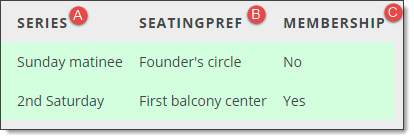
Question names correspond to column headings that show up on the Attendees tab where you track and manage registration responses. (See the examples below.)
This is the label registrants see when filling out the registration form.
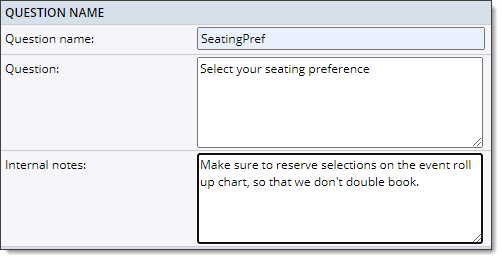
These are private notes regarding the question, for internal reference information only.
Here are some examples of how the question name, question, and internal notes are used.
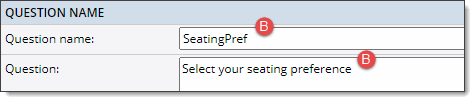
On the Add Registration Question page, you enter a question name and a question:
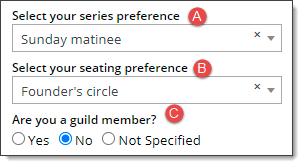
The questions are what appear on the registration form that your calendar visitors answer:
The question names become column headings on the Attendees tab for the event in your Trumba editing environment:
Internal notes regarding the question are for private information only, and are not visible on the registration form:
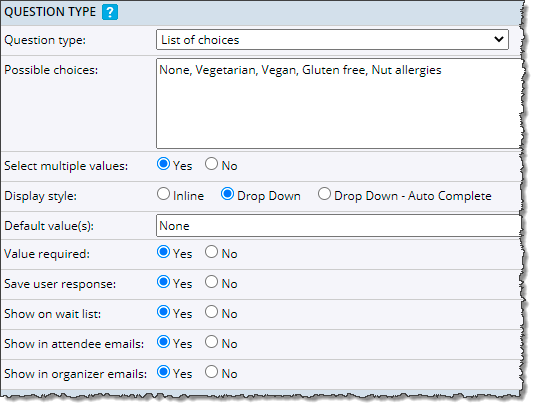
Question Type section, Add Registration Question page
Tip Registration question types are the same as custom field types (with the exception of Auto Complete, which is available only for custom fields). For more information, go to Field Types and Default Values.
For example, if you're asking for an ID number with the format xx-yyyy, you might provide maximum and minimum character values of 7.
Select Yes if you expect to reuse this question across forms, and you want the signed-in registrants' responses to be saved.
To include this question on the form registrants fill out when adding themselves to the wait list, select Yes.
Tip You can't create questions designed specifically for the wait list form. Only questions you include in the full custom registration form also show on the wait list form.
Adding a question to the wait list form allows you to gather information about registrants in advance. This might be useful if you want to decide which wait list registrants to admit if space becomes available.
For example, a college that offers campus tours could include a language preference question on its custom registration form to help them assign an appropriate tour guide. After a tour guide is assigned, they might need that information from the wait list as well to help determine who to invite when space becomes available.
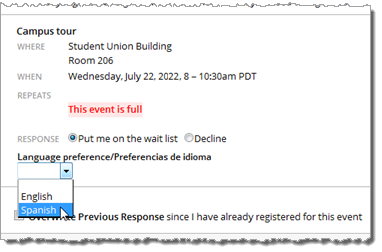
Language preference question, Wait list form
Like responses to questions on the full registration form, wait list question responses also appear in the registration list on the Attendees tab in the editing environment.
I'd like to know more about managing event registration responses.
For Required values, select the controlling question answers that trigger the current question to appear.
This control lets you organize and track your questions across multiple registration forms.
Regardless of the owning calendar you select, the registration question you create becomes available from any calendar in your account. However, it's a good idea to give some thought to your owning calendar choice. For example, best practices include:
I'd like more information about creating custom registration forms and choosing owning calendars.
Tips
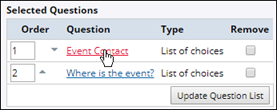
After you create the registration instructions, and section headings, you can add them to a custom registration form. You can then associate the form with a registration event.
Note You use a similar process to add questions to the form.
Note Following this task, the entry becomes an instruction or section heading, rather than a question.
This name identifies the instruction or section heading. It's for internal use only and won't be seen by the public.
Note For instructions and section headings, there is no 254-character limit (such as there is for registration questions).
The instruction or section heading that you create becomes available from any calendar in your account. However, if you want other calendar editors in your organization to have access to it, select a calendar that you share with them.
You can save signed-in registrants' responses to custom questions you create that you reuse across events.
Note For saved responses to work, a publisher account holder with administrative privileges must have set up visitor sign-in for your organization. Responses are saved only for registrants who sign in before they register.
I'd like more information about event registration sign-in.
I'd like more information about how visitor accounts work.
Saving responses means that registrants who regularly attend your events won't have to fill out the same question each time. However, they still have the option of updating their saved responses if they want.
Conditional questions are questions whose appearance depends upon answers to previous questions.
For example, a college campus tour registration form might include the question Will you need a modified visit schedule?. If the answer is No, no other questions appear. If the answer is Yes, two questions appear that ask for a modified arrival time and modified departure time.
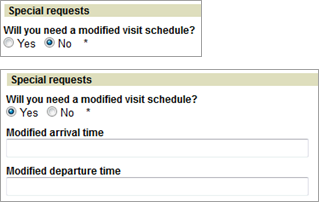
On this section of a registration form, answering No triggers nothing. Answering Yes triggers the display of two conditional questions.
Use conditionality to:
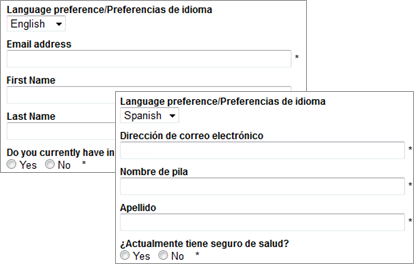
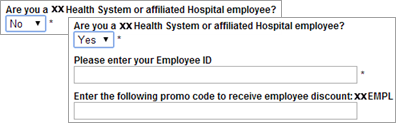
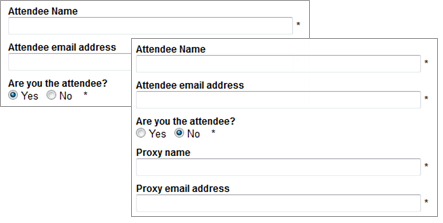
To set up conditional questions, it helps to think in terms of levels:
You define conditionality in the process of setting up the conditional, or dependent, questions. Defining conditionality means:
The form on the right shows the setup for the conditional Modified arrival time question. Tip Modified schedule is the label for the Level 1 Will you need a modified visit schedule? question. |
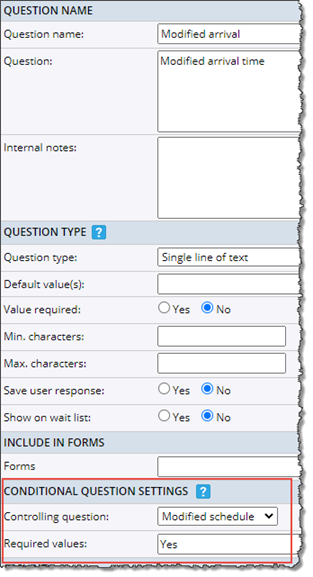
The setup involves identifying the controlling (Level 1) question and its required answer(s) (in this case, a single answer, Yes). |
Tips
