
This topic answers the most common questions about Trumba calendar spuds and how they appear and operate on your website.
Tip If the question you have is not included in this list, please visit our Product Support Forums, where many more spud questions are answered.
When browsers display content on secure (https) pages, they check to make sure all of the content on the pages is also secure.
Trumba now creates the spuds.js section of the spud script code without specifying the protocol (http vs. https). This script, such as in the example just below, loads using whatever protocol that the hosting page uses:
If you've used spud script code on your website that was generated by Trumba prior to this change, however, the spuds.js section may include "http:" as shown here:
Because the URL in that code begins with http rather than https, the browser interprets the spud content as potentially insecure.
Browsers respond to this differently, sometimes in ways that aren't obvious or that might cause concern for page visitors. For example:
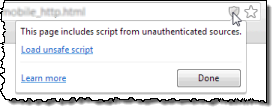
To make sure that visitors to an https page don't have trouble displaying your spuds, remove "http:" from your spud script code (in the spuds.js section), such as in the top example.
I'd like to know a little more about the spuds.js code.
Sure. If you use custom fields and/or organize your content by owning calendar or folder, you can use filter views to pre-filter spud content.
For example, suppose a university calendar uses an "event sponsor" custom field to indicate which academic department sponsors each event. This makes it easy to set up filtered views by department. Each filtered view consists of a collection of spuds pre-filtered to display only one department's events. These pre-filtered spuds can then be embedded in each department's home page.
To learn more, see Filter views.
To display a calendar in a section of a page, such as a tab or drop-down, that is hidden when the page first loads:
For example, in the case of a tab control, use an event handler to make the call.
div (the tab, drop-down, or other section) that contains the spud by including the spudId argument in the $Trumba.addSpud() method.
For a demonstration of how to display a calendar in a tab, open the following file and view the commented source code JQuery UI tab control.
If you try to enter spud code into a post on a WordPress blog that is hosted by WordPress.com, the only thing that displays in your blog is the text for the spud code.
Blogs hosted on WordPress.com do not support JavaScript (which Trumba® Connect uses to display spuds), and the WordPress software deletes script tags from your posts. They do this for security reasons, which you can read about on the wordpress.com site and in their support forums.
If you have downloaded WordPress software from the WordPress.org (a different site from wordpress.com) website and set it up on your own host, you may be able to add spud code to posts as long as you turn off the rich editor. Learn more in the WordPress documentation about using JavaScript.
Trumba customers who host WordPress have successfully included spuds in their websites using the Enhanced Text Widget plugin. You can download this plugin from WordPress.org at https://wordpress.org/plugins/enhanced-text-widgets/.
By default, event links in promotion spuds point to the version of your calendar hosted on trumba.com. You can easily change where event links point by putting the URL for your own calendar page into the Calendar Address field in Publish Settings.
Updating the Calendar Address field affects more than just spuds. It also means that visitors who click event links in your calendar emails and RSS feeds will jump to the calendar on your website.
Tip Be sure to include the http:// or https:// portion of the URL.
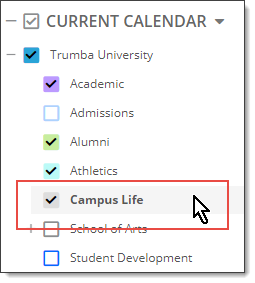
As shown here, the name of the selected calendar (Campus Life) is in bold type and it has a check mark.
To select a calendar, click its name.
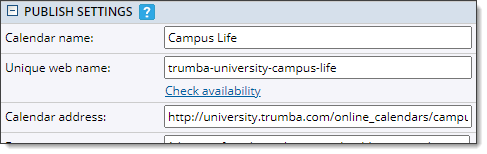
Tip The calendar address URL must include the http:// or https:// portion or it won't work.
The spud script now contains the teaserBase argument. As shown below, the value for that argument is the URL you pasted into the Calendar Address field.
To test where each promotion spud's event and other links take you, click Preview.
If you want to make the calendar fit into a set space that's narrower than the default calendar width, you can place it into a div of the best width and height for your page, and use the overflow attribute to add scroll bars to the div container. For example,
The Multi-day template requires a width of nearly 800px and currently behaves a little differently than the others. If your calendar uses this template, and you want it to fit into a narrower space, you need to take the code above one step further.
First, you need to create a div for the dimensions you want the calendar to fill on your page. Then you create a second div to hold the calendar. This is what the code looks like:
If you embed a Date Finder spud into a page that does not contain your main calendar spud, you need to tell it where to direct visitors when they click a link. To do that, you add the teaserBase argument as described in When I click an event in a spud, it jumps to trumba.com… earlier in this FAQ.
The Date Finder and the main calendar can appear to be out of sync, especially when you use the previous and next buttons to page through the calendar.
This can happen because:
Tip You can use Smart paging to keep the groups together on the same page, as much as possible. For more information, go to Organize events on a page.
The interrelationships between calendar view settings and the Date Finder means that you can't prevent the two spuds from occasionally appearing to be out of sync.
Date Finder serves primarily as a navigation tool. Visitors can click a date to quickly navigate to that day or month (depending on the calendar view). If you turn on Date Finder popups, visitors can also hover over dates to pop up a list of that date's events. By clicking an event title in the popup, visitors can display the event detail page. For more information, go to Enable/disable event popups.
The Upcoming Events Crawler spud code contains a Speed variable that you can modify to control the speed with which events scroll. The default value is 35.
After you paste the code into a webpage, you can control scrolling speed by changing the Speed variable's value.
With both promotion and control spuds, you can create multiple versions of the same spud for use either on the same or different webpages. Each version can use different settings.
Why would you want two configurations of the same spud? Suppose a public library uses an Upcoming Vertical Crawler promotion spud that displays the next ten events. The library can also promote just the next five events in its lobby using the same Upcoming Vertical Crawler spud, but this time formatted to show only the next five events. (See Digital signage.)
Tip If you want to copy a spud and maintain exactly the same settings and styles, you can clone the spud. Learn more.
On the Edit Settings... page, under Spud Configuration Name, you see the default name, SpudConfig2. Replace that default name to make it more meaningful.
For example, if the library mentioned earlier created a second Upcoming Vertical Crawler spud for use in digital signage, the library might name the spud configuration digital_signage. Meaningful naming makes it easy to keep track of each spud's unique purpose.
A spudConfig argument is added automatically to the code for each new configuration. For example, the spud code will look something like this:
Each copy of the spud shows events from the same calendar using the specific settings you selected.
The short answer is that the following script call ...
... needs to appear only once on each page that contains spuds, before any individual spud code. If you embed multiple spuds on a page, you have a couple of options:
For example, suppose your webpage includes a Date Finder promotion spud at the top of the left column, followed by the View Chooser and Search control spuds. The Main Calendar spud appears on the right. The only spud that must include the spuds.js script call is the Date Finder.
<head> section of your page and then omit it from each individual spud's code.The script above runs a file called spuds.js. The code in this file oversees communication among spuds on a page and between spuds and your source calendar data on the Trumba server. Without this code, the individual spuds can't function.
Although you should use this script only once on each page that contains spuds, the code appears with all spuds in the Publishing Control Panel. This is because any of the spuds can function as the only spud on a page, and the code must appear once. Running it multiple times does not harm anything, but it can affect performance.
Best practice: For the second or subsequent spuds on a page, don't copy this part of the code from the Publishing Control Panel.
