
Trumba® calendars are interactive. This means that site visitors can take actions with your calendar and the events they find there. For example, they can add events to their personal calendars or arrange to be notified if the time or location of an event changes.
These types of actions build ongoing connections between you and your site visitors, and increase the likelihood that they'll attend your events.
We've organized your exploration of calendar and event actions around four results that you can expect from integrating a Trumba calendar into your website. The calendar and event actions that your site visitors take make them more likely to:
Tip You can print this article from your browser, or to work on-screen, you can open two browser windows, one with this article and the other with the Trumba editing environment.
Site visitors are more likely to attend your events if they:
Locate events
With Trumba Connect there are several ways to give your site visitors control over the events they see on your website calendar. When they have control, they're more likely to find and attend the events they care about.
Important For these steps, and throughout the Get Started articles, we use examples from the default General Events calendar generated by the Trumba Startup Wizard, and assume that you've completed the previous Get Started articles. General Events has its own set of views and custom fields, which may differ from those on your default calendar, but you can still work with the steps below.
For more information, go to the section Review the spuds that drive your hosted calendar, in Get Started 3.
For information about other ways to give your site visitors control, go to Control and Promotion Spuds.
Add events to your personal calendar and more
See how event actions (built in to every Trumba calendar) make it easy for your calendar visitors to add events to their calendars, set reminders, arrange to be notified if events change, and more.
For more information about your default calendar, go to Get Started 1: Review your live calendar and Trumba editing environment.
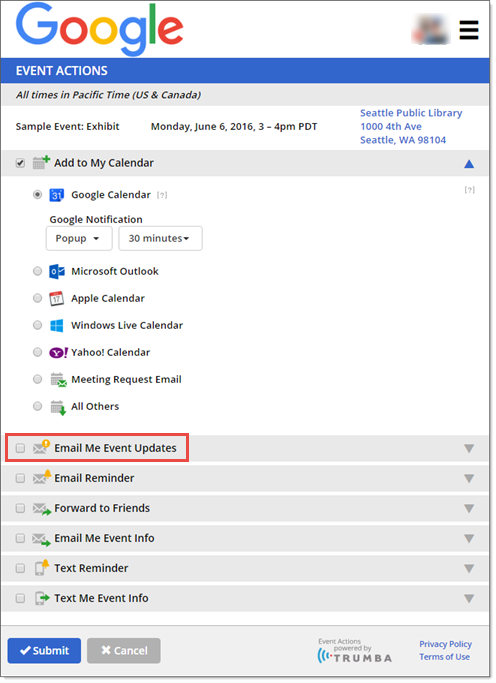
© 2015 Google Inc. All rights reserved. Google and the Google Logo are registered trademarks of Google Inc.
Word of mouth remains one of the best ways to spread information about your events. We'll show you two ways that Trumba calendars make it easy for site visitors to share information about your events with others.
To help you explore your options, we've provided links to other live calendars.
Share an event through social media
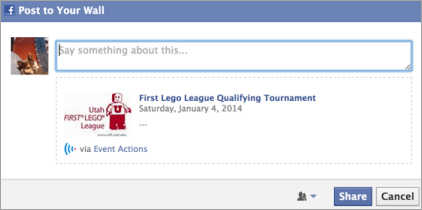
One of the event actions that's automatically available on all Trumba calendars is to share an event over social media.
Tip You can also let calendar visitors comment on events using the Disqus commenting service or the Facebook comments plug in. Learn more.
Forward event information to friends
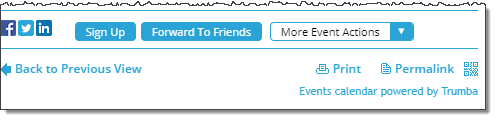
Another of the event actions that's automatically available on all Trumba calendars is the ability to forward it to friends.
You'll see confirmation that email messages were sent.
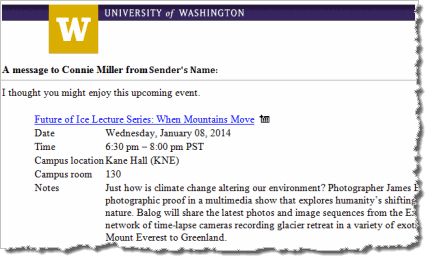
By clicking the icon to the right of the event title, recipients can add the event to their personal calendars, forward it to more friends, and take other event actions.
You can't expect your site visitors to keep returning to your website to see if you've added any new events to your calendar. If you're a Trumba calendar publisher, you automatically provide site visitors with easy ways to stay informed about upcoming events.
Note When site visitors want to stay informed about changes to a particular event, they can use event actions (e.g. Email Me Updates). To stay informed about all the events in the publication, they can subscribe to the calendar email, such as in the procedure below.
Subscribe to calendar email
Site visitors can add themselves to your email distribution list with just a click. For more information, go to Get Started 4: Scheduled calendar email.

Tip To subscribe to an RSS feed of your website calendar, click RSS Feed and then follow the on-screen instructions. When you add or update events, RSS subscribers automatically receive notification in their browsers or RSS readers. For more information, go to http://en.wikipedia.org/wiki/News_aggregator.
When site visitors can add your events to their own calendars, and automatically receive information about upcoming events, they are more likely to stay connected with your organization.
In this exercise, you'll see how:
Submit events
If it makes sense for your organization, you can add an event submission form to your website so that site visitors can submit their own events. You control the destination calendar for submitted events and can set up an approval process prior to events going live.
You can submit a test event to the Trumba University demo website to receive an example email confirmation. (We won't actually add any submitted events to the calendar; and, submitter information is never shared with any outside parties.) For more information, go to The Event Submission Process.
You'll see a summary of your event information. If you click Submit, both you and the calendar publisher receive email notification that the event has been submitted.
Track customer interactions
Trumba Connect provides up-to-date, detailed reports about how often site visitors view your calendar, which events are most popular, what actions they take with events, and more.
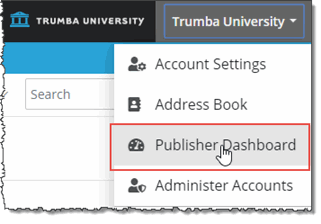
We provide you with a Publisher Dashboard where you can view your calendar activity from the current month and back two months. For more information, go to Publisher Dashboard.
While you're not likely to see much activity on the initial calendar generated by the Trumba Startup Wizard, you can at least see where to track activity in the future.
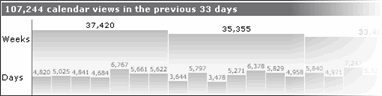
For example, this partial calendar views chart appears in a very active calendar's Dashboard.
