
What you can learn in this topic:
People will be more likely to attend your events if they know how to get to them.
By adding a map link to an event, attendees will know exactly where the event venue is located and how to get there.
Tip If you add map links to events, you can provide a Location Search control spud along with your main calendar. The Location Search spud lets visitors search for events that occur within a given radius of a specific location. Learn more about the spud.
You can include a map link with any event for which you can provide a verifiable location.
For example, you can search for:
Tips
Trumba® Connect uses the Google Maps™ mapping service to verify the addresses and points of interest, and then create map links. Other map services are no longer available. Map links you've applied using other services in the past are converted automatically to Google Maps™ links both in your published calendar views and in your event data in the Trumba editing environment.
Each time you add a map link to an event, the link is added to the Recent list. (So, you don't have to add a new map link for the same address over and over; you can select an existing link from the Recent list.)
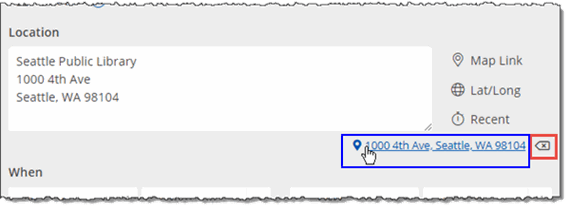
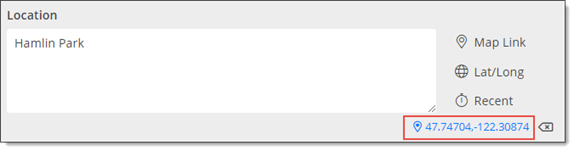
You can test map links by clicking the mapped location link below the Location field in the add/edit event form -- highlighted in blue in the example below.
Can I remove links that I no longer use?
Notes
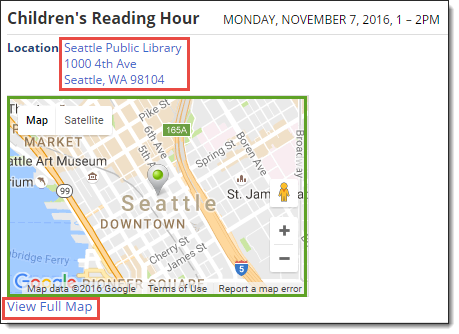
When you publish a calendar, the location listed for the event where you added the map link becomes a hyperlink to a map of the location, as shown in the screenshot below:

Site visitors can click the location link to display a map of the event location, or they can click the event title to open the event details page.
A thumbnail image of the map appears on the event details page (outlined in green in the following screenshot); clicking the location or the View Full Map link under the thumbnail (outlined in red) displays the full map:
Tip Map links are also available to recipients of scheduled or one-time calendar email messages that you send. By clicking the titles of events in the email message, recipients open event detail pages similar to the one above.
Or, click an event title to open the add/edit event form.
Tips
For example, to map the Seattle downtown library, you can add the library name to the first line of the address:
Seattle Public Library, downtown Seattle
1000 4th Ave
Seattle, WA 98101
How can I add a map link using latitude and longitude coordinates?
Tip If you're adding a map link for an address you've mapped in the past, you don't need to add the address or link again from scratch. Instead, click Recent, and then select the link from the list.
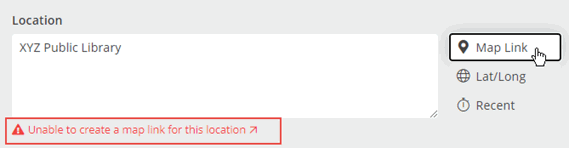
In the Location text box, provide additional location information, and then click Map Link again. When the mapping service verifies the location, it's automatically added to the Recent list.
If you want to provide a map link to a relatively remote area or if you're trying to link to an address that the Google Maps™ mapping service can't verify, you can use latitude and longitude coordinates. (Typically, a location's coordinates are easy to find using internet search.)
When you enter the coordinates, use the Decimal Degrees format where the N-S and E-W designators are omitted. Instead, to indicate direction, use the:
For example, to add a map link to Hamlin Park in Shoreline, WA, use these values for latitude and longitude, respectively: +47.7470422 and -122.3087386.
Tip Latitude and longitude values that omit the plus sign are assumed to be north of the equator and east of the Prime meridian.
To add a map link using latitude and longitude coordinates
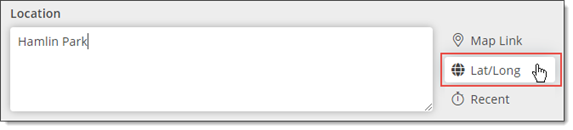
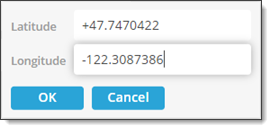
The coordinates appear beside the mapped location link. You can test the link by clicking the hyperlinked coordinates.
Tip Map links you add using latitude and longitude coordinates do not appear in the Recent list.
If the location for an event changes, you may need to update the map link associated with the event.
Tip Updating a map link means changing the location and link associated with an event. Updating a map link has no effect on the Recent list. The original map link and the new one both remain in the list until you remove the outdated one.
If the Google Maps™ mapping service is unable to verify the location, provide additional location information in the Location text box, and then click Map Link again.
You can test map links by clicking the mapped location link below the Location field.
Tip Before you click OK, if you're not likely to ever again use the outdated link you just updated, read on to learn how to remove it from the Recent list.
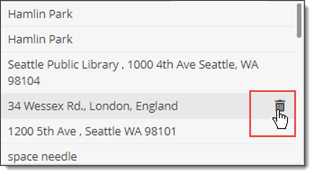
Over time, some of the map links you add to the Recent list may become outdated. To keep the list as compact and usable as possible, you can remove outdated links.
Tip Events that use a particular map link are not affected if you remove that map link from the Recent list.
To remove links from the list
Map links that you've created in Trumba Connect are not available:
Tip Map links are available when you subscribe to an RSS feed of a published calendar. Clicking the event title in the RSS reader opens event details, where you can click the location or map thumbnail link to display the map.
